


Desertcart purchases this item on your behalf and handles shipping, customs, and support to Seychelles.
⚡ Dominate your game and workflow with precision light-speed control!
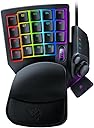
The Razer Tartarus Pro is a cutting-edge gaming keypad featuring ultra-fast analog-optical switches with adjustable actuation, 32 programmable keys including an 8-way thumbpad, and fully customizable Chroma RGB lighting. Designed for both gamers and creative professionals, it offers ergonomic comfort and powerful macro capabilities to elevate performance and productivity.


| ASIN | B07YQKS4B5 |
| Additional Features | Backlit, Ergonomic, Programmable Keys, Volume Roller, Wrist Rest |
| Antenna Location | Gaming |
| Best Sellers Rank | #151 in Video Games ( See Top 100 in Video Games ) #8 in PC Gamepads & Standard Controllers |
| Brand | Razer |
| Built-In Media | Item |
| Button Quantity | 32 |
| Color | Classic Black |
| Compatible Amazon Tablet Models | Amazon Fire 5th Generation, Amazon Fire 7 5th Generation, Amazon Fire 7 7th Generation, Amazon Fire 7 9th Generation, Amazon Fire HD 10 5th Generation, Amazon Fire HD 10 7th Generation, Amazon Fire HD 10 9th Generation, Amazon Fire HD 8 5th Generation, Amazon Fire HD 8 6th Generation, Amazon Fire HD 8 7th Generation, Amazon Fire HD 8 8th Generation |
| Compatible Devices | Gaming Console |
| Compatible Operating System Family | Android, Linux, Windows |
| Connectivity Technology | USB |
| Customer Reviews | 4.2 out of 5 stars 4,560 Reviews |
| Enclosure Material | Plastic |
| Generation | 2 |
| Global Trade Identification Number | 00811659035318 |
| Hand Orientation | Ambidextrous |
| Item Dimensions L x W x H | 5.95"L x 7.96"W x 2.5"H |
| Item Weight | 12.8 ounces |
| Keyboard Backlighting Color Support | RGB |
| Keyboard Description | Gaming |
| Keyboard Layout | Neo |
| Manufacturer | Razer |
| Mfr Part Number | RZ07-03110100-R3U1 |
| Minimum Required Operating System Version | Android 14.0, Mac OS 14 Sonoma, Windows 11 |
| Model Name | Tartarus Pro |
| Model Number | RZ07-03110100-R3U1 |
| Number of Items | 1 |
| Number of Keys | 32 |
| Number of Packs | 1 |
| Number of Sections | 1 |
| Power Source | Corded Electric |
| Recommended Uses For Product | Gaming |
| Special Feature | Backlit, Ergonomic, Programmable Keys, Volume Roller, Wrist Rest |
| Style Name | Tartarus Pro - Optical Switches |
| Switch Type | Razer Analog Optical Switch |
| Theme | gaming |
| UPC | 811659035318 |
| Unit Count | 1 Count |
| Warranty Description | 2 year manufacturer |
K**C
A graphic designer / digital illustrator's perspective
While I do a fair bit of gaming (mostly action & FPS games likes Rainbow Six: Siege, Hunt: Showdown, Outriders, etc.), when I discovered this product it was the last thing on my mind. That said, if you're reading this review to get my feedback on its usefulness and responsiveness in games - this review will have zero pertinent information for you. If, like me, you were looking at this as a potential editing console/controller - this review is for you. I am a professional graphic designer and digital illustrator who regularly uses Adobe's Creative Cloud suite. In particular, I use Illustrator, Photoshop, InDesign and Xd daily. For some of these programs I tend to use a Wacom Intuos Pro medium in place of a mouse and, of course, a keyboard. This is the main reason I purchased this device. While I'm perfectly at home with a mouse and keyboard, I can attest to and must admit that having the Razer Tartarus Pro has sped up my workflow EXPONENTIALLY. As some of you reading this may know, using a graphic tablet is great for countless applications but personally when I'm using a tablet for something other than digital painting, using the express keys makes it awkward to operate one-handed and flipping back and forth between having both hands on the tablet (1 on the express keys, 1 on the pen) or having one hand on the keyboard and the other on the pen. As you might imagine this can actually slow your process down somewhat significantly. Especially when you consider that the keyboard shortcuts that you use frequently can be between 3-4 simultaneous keystrokes which adds to the uncomfortable nature of switching. For this reason, some people start to look at editing consoles/controllers to help with this. The main two I personally had been considering were the Tour Box ($169 MSRP at time of review) and one of the Loupedeck devices ($250-500). While both were fine products, I heard this mentioned in passing and decided to investigate. I was a bit surprised because I've pretty much always used Logitech products, I knew nothing about Razer's catalog except that they were popular with people who take gaming much more seriously than I do and that's about it. At a MSRP of $129 I had to at least try it. When it suddenly went on sale from $129 to $79, I pulled the trigger. This has been my experience so far: The short: I wholeheartedly recommend this device if you are looking to use it the way I am. I cannot speak to this device's use in games because I haven't used it for that, I wasn't planning on it and frankly, the other thousands of reviews have that aspect covered pretty thoroughly. The long: I chose the Pro over the V2 for a few reasons I think you'll find important. The main advantages the Pro has over the V2 are that it has optical switches, the keys are dual-action and the keys actuation is adjustable. If you're used to mechanical keyboards, the key "feel" may mess with you at first but unless you're a particularly heavy-handed typer I don't foresee any adjustment issues. The keys on the Pro are a little on the heavy side but because of the nature of the dual-action keys, they kind of have to be. While you can set the actuation (ostensibly how hard you press before the unit recognizes that it's been pressed far enough to trigger the secondary action) to your preference, it will take some light adjusting. The primary function triggered by the initial keypress can be extremely light and the secondary action is generally triggered around half way to "bottoming out" (key being pressed in all the way). It's also important to know that regardless of what you have assigned to the primary and secondary actions to any given key, the primary action will always be triggered first and there is no way to bypass the primary function. While that may sound limiting, it just means you have to be thoughtful about what you assign. I'll talk about this more later. The beauty of the dual-action keys for design software is that you can just set all of your most-used functions to single key presses as there is no string limit per key. That said, as I mentioned, the way you stack keys matters. For instance, if you wanted to set up a key to "Save" on primary and "Save-As" on secondary - it's still gonna overwrite your file because it has to "Save" before it can get to "Save As". A better way of grouping similar commands would be to set "Copy" as primary and "Cut" as secondary so that it doesn't matter that you only need to cut as copying won't prevent you from cutting immediately after. And it's not just the keys - you can even program the scroll wheel and D-pad. Might sound useless to a mouse user, but being able to immediately switch between scrolling and zooming on that wheel without having to move your hand - it's just one of those little things that, in tandem with the rest of your efficiency binding, make this thing fast and fun to use. You also have them ability to designate a key as a "Hypershift" key in Razer's Synapse software (more in that in a sec) wherein instead of tweaking the actuation to your liking to make use of the dual-action keys, you can sacrifice a key to be the modifier instead of using the "pressure" settings. Feels a bit silly to sacrifice a key for that reason to me but it's a reasonable alternative for the more heavy-handed among us. Razer's Synapse 3 software (needed to program your keys and lighting) is not the most immediately intuitive, but once you get the hang of it - it becomes fairly easy to use. From Synapse, you can create profiles for your respective games/applications with their own independent layout and lighting options. You can adjust the key actuation, macros, brightness and for all your RGB lighting needs, Razer's Chroma suite has you covered. You can even sync your other Razer devices or have the lighting effect(s) (Yes, you can even layer lighting schemes and effects) or incorporate multiple Razer devices into a single continuous effect. This is one of the other reasons I opted for the Pro over the V2. I tend to work in little to no light, so the per-key RGB lighting (Yes, even the scroll wheel) is much better than the V2 in that there is no light bleed on the Pro. Depending on the environment, the light bleed on the V2 is pretty egregious by comparison. On the Tartarus Pro, I've never been confused as to which key I'm about to hit and while that may sound like a minor issue for a difference of $50, like any other piece of equipment, there's gonna be a learning curve. That learning curve can be shortened drastically if you start out by color-coding keys which is a huge help until muscle memory develops. Some have complained that the unit has no onboard memory and while this is true, Synapse has cloud storage for settings, so unless you intend to take this device with you everywhere and need to use it in 100 different machines...I'd argue that's a bit of a moot point. I know everyone's needs are different, but realistically I see most people using it on their main workstation and maybe a laptop...even if I still worked at an agency on-site, I'd be hesitant to request IT clear Synapse for my work machine but maybe we're different. The last thing to touch on are the ergonomics. I have large, but not huge hands and I find (for my purposes) that reaching all the keys is comfortable and intuitive (even when you start building speed - and you will). If you have larger hands, the palm/wrist rest is adjustable but if you have smaller hands, I could see this being less wieldy although not uncomfortable. If you have average to large hands I think you'll be at home. The palm base/ wrist rest is lightly padded but not so much so that you notice it which is great because I've dealt with a myriad of "comfort" features that only served to irk during extended periods of use. Thankfully, in the case of the Razer Tartarus Pro, I can use it for HOURS without any discomfort whatsoever. There's something extremely cathartic about being able to work without moving your hands unnecessarily. It's a huge help if you deal with strain from carpal tunnel or tendonitis especially. Whether you're a mouse, tablet (or both) user, I think everyone considering this to speed up their design workflow should at least try it. Do some experimentation with your binds both in physical placement and how you "stack" commands and group your keys colors by tool/function and I'm willing to bet it won't take long before you start wondering how you were getting by without it.
T**G
Great for World of Warcraft
Bought the optical version for use in World of Warcraft and overall I am very pleased. Here are some general notes: - It takes a little while to get used to the positioning, but the ergonomics are actually quite good. I wear medium gloves and I can very comfortably access most of the keys. The ones on the far upper corners are a bit of a stretch, but I bind lesser used abilities to those. - One exception to the comfort is the 20 key by the thumb. It is overly awkward for me to spread my wrist to be able to use it consistently for jumping (the default) and I never use it. However, a useful workaround is to rebind the profile switch key above the D-pad which works extremely well for jumps. Makes for a much more comfortable ergonomic experience. - The wrist pad is comfortable and is surprisingly durable. Used it for about a year and there is no visible wear, and I have been able to keep it clean with the occasional alcohol wipe down. - The software makes the device highly configurable and works easily enough. - I bought the linear switch version although I think I would have been just as happy with the mechanical one. You could bind different actions to light and full presses of each key and the action is robust, reliable, and configurable. However I have not found a great use case for it yet so I just run single binds to each key. The upside with single action is that you can set the depth when they key is activated to prevent accidental presses when you are either resting your fingers on the button or brushing them while building new muscle memory. The unit seems like it has excellent durability so having the extra features and configurability is an investment in the long run. If anyone is curious, here is how I use the controller in World of Warcraft: - I use the 8, 12-14 keys are my WASD home for movement with the profile switcher key for jump (also reflected in their Razer software binding) - The 16 key is bound to Shift with the rest of the keys bound to the numpad keys in the Razer software - Using the Bartender mod in WoW, I created two 5x4 grids that map 1:1 to the buttons on the controller (see photo) - In WoW, I bound the left bank to unmodified keypresses corresponding to the button location and the right bank to Shift+ key presses corresponding to the button location. - The bottom left and bottom right buttons that do not have any activating key presses assigned (16 is bound to Shift and there is no physical button to the right of 19) are assigned to mouse keys. - I bound Shift+W key to autorun which seemed natural Using this configuration, it allows me to: - Have a visual connection to the physical location on the keypad that aids in training and recall - Double the amount of action keys by using the Shift modifier on the 16 key - I use the "dead space" of where the middle 8, 12-14 keys are that are reserved for movement to be used for things that do not need to be bound, like buffs, food, or miscellaneous pots. - The spots for Shift+movement keys (8, 12-14) are useful for things associated with movement like mounts or emergency actions like floats if you get knocked off something I feel like I have plenty of keys for actions, especially if you use macros to combine common actions and trinkets together.
J**Y
thumbpad is unadjustable and awkward to use.
Solid product, just not quite what I was looking for. Compared to my original Tartarus I had (the OG one) I will say this product was leaps and bounds ahead of it. The switches felt great, the scroll wheel was good, and overall I liked it. However as I've aged my hand has gotten worse, so I purchased it hoping for a bit of a resolution on that front, this unfortunately was not that. The thumbstick is in an odd position and since it's non adjustable it ended up causing me more pain. I will give it a solid 10/10 on the keycaps though and if you're not like me I seriously would advise you looking into it.
C**R
Works GREAT with small hands! Records double modifiers! +6m, +1year, +2.5 year updates
I have small hands, 6.5 inches from palm to middle finger tip and ring sizes 4.5-6. I'm able to use this but I did need to shift my hand position to the right so I could use the thumb buttons. I swaped the directional keys to correspond and added some textured gaming keycap stickers to help me learn the new keybinds. I am able to use all of the buttons easily except the top row which requires a little stretch to reach but that's fine with me, I just make those the seldom used keybinds. I needed more pinky modifier buttons as well as thumb accessible modifier buttons (the D-pad is perfect for that). I use this for gaming along with a G600 mouse, it works wonderfully and solved the problem I was having with needing more modifiers and being able to hit binds faster/more reliably. You can record double modifiers with this such as Alt+Shift, I needed that feature specifically. It looks amazing matching my mercury huntsman mini and I love having a separate keypad for gaming rather than using my keyboard. It allows me to have crazy re-mapped keybinds without losing the ability to type normally. I use W A,S D,Q, and E; all the rest of the keys are re-mapped to numpad or modifiers. The space bar key (20) is a bit low and the distance makes it unreliable for me to use quickly so its in the seldom used keybind category. I re-mapped the circular button above the D-pad to map, the D-pad is space bar and 3 modifiers. The little D-pad thumbstick attachment is really great, too! <> - 6 month update- I absolutely love this thing. I've adjusted to using it all the time for gaming and it is so incredibly comfortable. The wrist rest is my favorite part in regards to comfort and the hand positioning in general is relaxing, the shorter keycaps help with this. I found some better gripy texture tape for my most used keys. The joy stick for the D-pad has become pivitol for my gameplay. I love this thing so much that I got a second one for couch gaming. Synapse 3 doesn't support 2 of the same device running at once so I had to get a USB splitter. I purchased both devices "Used like new" and they have been wonderful. Both arrived in perfect condition with no blemishes or malfunction. - 6 mo th update on the second I purchased in "Like New" Condition. One of the keys broke out of nowhere while I was using it. The device had not been damaged while in my care. Razer does not sell replacement keys for this item and refuses to provide them. Keys are not covered in the warranty, so if they break you are out of luck. However, I was able to find these keys on Amazon that replace the low profile Tartarus keys perfectly -amd they are very affordable: X-keys Keycap Cherry MX Compatible -2.5 year update: STILL AWESOME lol. No issues whatsoever. I have 3 now, send help. I made the #20 thumb usable by making a booster seat for it. Took off they key and traced it on firm 1/4 inch thick foam, cut out the exact shape (took a little notch out to keave room for the D-pad thumb stick to clear it), then doubleside taping it to the key- works like a charm now. I use the Tartarus for every game ( FPS, MMO, Competitive) and will never go back to using a keyboard for gaming.
S**N
The Good The Bad & Fixes
Ok so starting off, i switched from using logitechs gamepad for 15 years. Their decision to remove support and start charhing subscriptions for software just rubbed me wrong so now its time to change after my joystick started to die. So i'll go over good first then the bad as well as solutions for some of the bad. Good: Functions great. The sensitivity settings for button presses is amazing! Rly ups my in game reflexes being able to barely touch buttons to use them. I also love the idea of the scroll wheel on the gamepad, great for if a mouse scroll wheel is acting up. Additionally the silent button presses is great for me.. clicky clack drives me nuts when gaming as i feel like im disturbing others. I also love the size of the joystick as i have big thumbs and the cushion is great for my wrists. Bad: So some of this is just user error and preference but i did find solutions for most of it which i will go into detail on. Almost all of my issues involve the joystick. So i use mine for movement not hotkeys as it frees up three fingers that way. When using it for movement dont change it to 8 directional as theres a bug where it cant do 360 movement as it wont read the diagonals. If you are like me and curiously thought to check it out but went back to 4 directional you will need to restart your computer after switching back to 4 direectional as without the computer restart the bug on the diagonals will still be there. So tldr: 4 directional allows 360 movement but 8 does not and if you switch to 8 and then back to 4 it needs a pc restart to read properly again. point 2 is the joysyick is slippery as hell, so my solution was getting a ps5 grip cap warming it up a bit and stretching it to fit. 3rd point is the clicking. everything else on the gamepad is silent i wish the joystick was too, even an option to adjust the clicking would be nice, much like what some of their mice can do. when i first got it buttons were a little stiff so took some muscle memory adjustment and a bit of use to loosen em up. not an issue long term just a point to keep in mind when u first get it. with the sensitivity setting anyways it only affected me ehen holding buttons down til they loosened up. Having used logitech's for years i do miss the screen with the performance monitor on it as well, but i have other eays of doing that so not a huge loss. ok final point is the scroll wheel. its location is terrible, it sits right under the joint between the thumb and pointer which is not easy to reach. Putting it to the left of the 09 or 10 button would be a better spot making it easier to use as frankly my pointer finger and thumb dont bend that way for the current placement. all in all amazing gamepad just needs some minor tweaks to make it perfect.
G**F
The Least Comfortable Keypad You Will Ever Use
My hands aren't small - I can comfortably hammer away at any 10th on a piano. But trying to use this keypad for a few days, I've come to believe it's designed for aliens with 5 incredibly long sausage fingers plus a thumb. THE GOOD: - It's almost fully customizable. The scroll wheel can't have any macros assigned for some reason, but everything else can go anywhere else. - You can disable the RGB lighting. - It doesn't have any garish color schemes or branding and it comes in black, like everything else. - Keyswitches are high-quality and should last a long time. - Braided cable. Always nice to have that. THE NEUTRAL: - The keyswitches are linear with no feedback. No tactile bumps, no satisfying clicks. If you're familiar with typing on an office keyboard or pressing buttons on a controller, this will feel wrong to you. THE BAD: - Everything but the keyswitches and keycaps feel weak, flimsy and wobbly. - The wrist rest forces your hand to sit at an angle that is not perpendicular to the keypad. This is due to the "hump" that accommodates the scroll wheel. Removing the wrist rest is possible, but doesn't alleviate the issue and makes the device somehow even more uncomfortable to use. You're guaranteed sores, cramps and RSI if you use this for more than a week while resting your hand on it. - The scroll wheel, which has too-subtle detents and a slimy rubbery texture, cannot be reached in any comfortable position unless you move your entire hand or have an extra index finger. The smarter place to put the scroll wheel would be near the thumb cluster. Someone wasn't thinking when they designed this. - The keys are oversized, apparently designed for incredibly thick sausage fingers. If this describes you, you still might want to look elsewhere. - The only key with a legend on it is #13, which is where "S'" would be in WASD. This is a problem because the keys caps are huge, all feel the same and you generally if the device was properly designed in the first place - shouldn't move from that position anyway. The smarter location for legends would be the keys farther out away from the WASD cluster, so you can feel them out as needed. - The directional pad is unpredictably responsive, mushy and works like a joystick hat out of the box, but feels flimsy enough that it would break if you looked at it wrong. - The device HAS NO INTERNAL CONFIGURATION MEMORY. YOU MUST KEEP THE RIDICULOUSLY BLOATED SOFTWARE RUNNING IN THE BACKGROUND AT ALL TIMES FOR YOUR CONFIGURATION TO WORK. Logitech could figure that one out, why can't "For Gamers, By Gamers" Razer manage it? Spend more on your product development and less on your box designs, guys. - The macro module's functionality in the software is too simplistic for what it pretends to offer. You can program sequences of key presses with delays between them, but that's it. No toggles, no loops, no conditionals or modifiers, nothing. Just a sequence of specific key presses, and only one macro per key, but only as long as that key isn't arbitrarily "special" like the scroll wheel. Not expecting AutoHotKey depth of customization, but at the bare minimum, a toggle option is expected. I'm returning the one I bought and staying away until I see some marketing with special care taken to acknowledge how awfully their previous products were designed.
A**E
Master Your Game with the Razer Tartarus Pro Gaming Keypad
Calling all gamers! Get ready to level up your gameplay with the incredible Razer Tartarus Pro Gaming Keypad. Designed to enhance your gaming prowess, this beast of a keypad boasts analog-optical key switches, customizable RGB lighting, and a plethora of programmable keys. In this review, we'll explore the gaming-centric features of the Tartarus Pro, helping you dominate the virtual battlefield like a true gaming pro. Unleash Unprecedented Precision: The Razer Tartarus Pro introduces a game-changing innovation: analog-optical key switches. Imagine having the finesse of an analog joystick right at your fingertips. These switches register varying levels of pressure, offering unrivaled control and precision. With this cutting-edge technology, your movements will be more fluid, your aim dead-on, and your gameplay next-level. Prepare to leave your opponents in the dust! 32 Keys of Pure Customization: Say goodbye to limitations and hello to limitless possibilities. The Tartarus Pro comes equipped with a whopping 32 fully programmable keys, begging to be customized to suit your gaming needs. Assign macros, execute complex commands, and create shortcuts to optimize your gameplay. With this level of customization, you'll have the upper hand in any gaming situation, whether you're exploring vast fantasy realms or battling it out in intense multiplayer arenas. Ergonomic Excellence: The Tartarus Pro not only delivers in performance but also in comfort. Its ergonomic design ensures that even the longest gaming sessions won't take a toll on your wrists. Every key is within easy reach, allowing for lightning-fast reactions. And let's not forget the 8-way directional thumbpad, designed for console-style movement control. It's time to bid farewell to discomfort and embrace the ergonomic bliss of the Tartarus Pro. Create Your Gaming Aesthetic: Who says gaming can't be stylish? With the customizable Chroma RGB lighting, the Tartarus Pro lets you create a visual spectacle that matches your gaming personality. With support for 16.8 million colors and individually backlit keys, your setup will be a mesmerizing display of light and color. Immerse yourself in a vibrant gaming environment that syncs with your favorite games, Razer peripherals, and even Philips Hue lighting. Prepare to game in style! Unleash the Full Potential with Razer Hypershift: Take your gaming to the next level with Razer Hypershift. This game-changing feature allows you to remap all keys and keypress combinations, opening up a world of advanced functionality. Execute lightning-fast combos, create intricate commands, and adapt to any gaming scenario with ease. The Tartarus Pro empowers you to be the master of your game, giving you the ultimate control and flexibility. Conclusion: The Razer Tartarus Pro Gaming Keypad is a true game-changer, designed to enhance your gaming experience and elevate your skills. With its analog-optical key switches, customizable RGB lighting, ergonomic design, and fully programmable keys, this gaming keypad is the ultimate weapon in your gaming arsenal. Dominate the virtual battlefield, unleash your gaming potential, and immerse yourself in a world of precision and customization. Gear up with the Razer Tartarus Pro and leave your mark as a true gaming legend. Get ready to level up!
L**S
Great Features, but I’m Still on the Fence
I have mixed feelings about this keypad. The hardware and features are impressive, especially Rapid Trigger, adjustable actuation, the thumbpad, and all the customization options. However, I’m still not completely comfortable with the ergonomics. The layout feels different from what I’m used to, and I’m still trying to find the most natural way to position my hand. I’m also not completely sold on the Razer software. My laptop has an Intel Core i9 and an RTX 4060, so I have more than enough hardware for gaming, but I’ve noticed that the system sometimes feels a little slower when the Razer software is running. I can’t say for sure that the software is the cause, but it’s something I’ve noticed. I’m going to give it more time before deciding whether I’ll keep it. Great hardware and lots of potential, but the ergonomics and software experience could be better.
W**O
A niche but misunderstood product.
- This feels more useful for productivity than gaming. - Macro heaven for all your shortcuts with a single key press such as Ctrl+Shift+J - Save frequent key press sequence such as "Ctrl+Shift+P -> secretplan.com -> enter". This will open a private browser, type in the address and launch the website, with a single keypress. - Numpad for 60% keyboard users - Key switches' actuation force is towards the heavier side. Might need getting used to if you're comfortable with light switches. Does require effort for initial set up, and a learning curve to remember and get used to the set up. But when you do, you'll be a efficient machine with minimal effort. Note: You MUST install the Razer software and have it running in the background. It doesn't have onboard memory. Overall, highly recommend but please do your research before diving in.
M**O
Excelente, melhor compra da categoria
Melhor gamepad que já utilizei, melhor função é poder colocar WASD na primeira ativação e Shift + WASD na segunda ativação das mesmas teclas ou 2 hotkeys para serem usadas juntas na mesma tecla. Leva um tempinho para acostumas mas vale 100% a pena. Única crítica é que o knob de polegar poderia ser um analógico real, e a rodinha de mouse deveria poder ser configurada para rolagem horizontal.
J**S
Una vez que tienes esto no querrás jugar en teclado standard.
De lo mejor que he comprado para el gaming y productividad en general. Totalmente personalizable desde cada botón, la presión para que haga los comandos y las configuraciónes muy sencillas de entender, puedes personalizar un perfil con cada programa que tengas y dentro de este tenter diferentes keymaps. Qué no se dejen engañar con lo de que sale de mala calidad, ya tengo más de 3 meses con el y sin problemas, funciona totalmente al 100, Razer no falla,
D**E
Easy to use
really comfortable
H**R
Great for fortnite
Really good. However on my system it randomly stops working and I need to restart my PC
Trustpilot
5 days ago
2 months ago