Desertcart purchases this item on your behalf and handles shipping, customs, and support to Seychelles.
🚀 Power Your Network Like a Pro — Stay Connected, Stay Ahead!
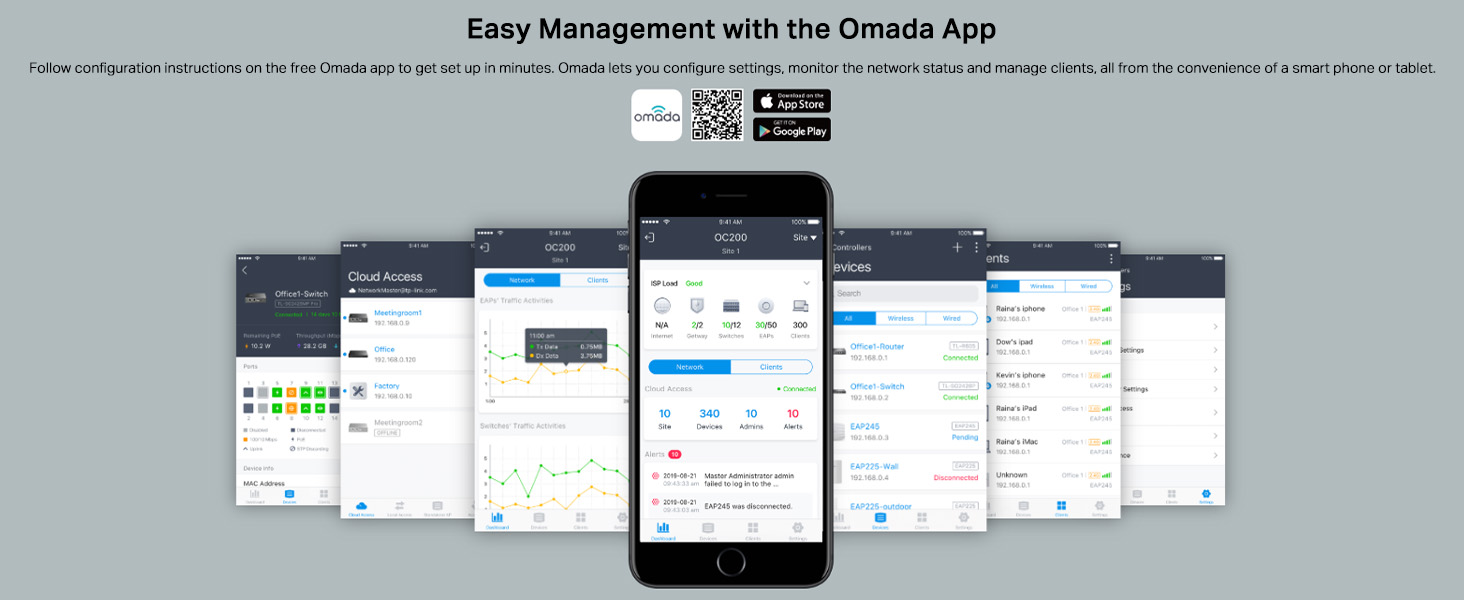
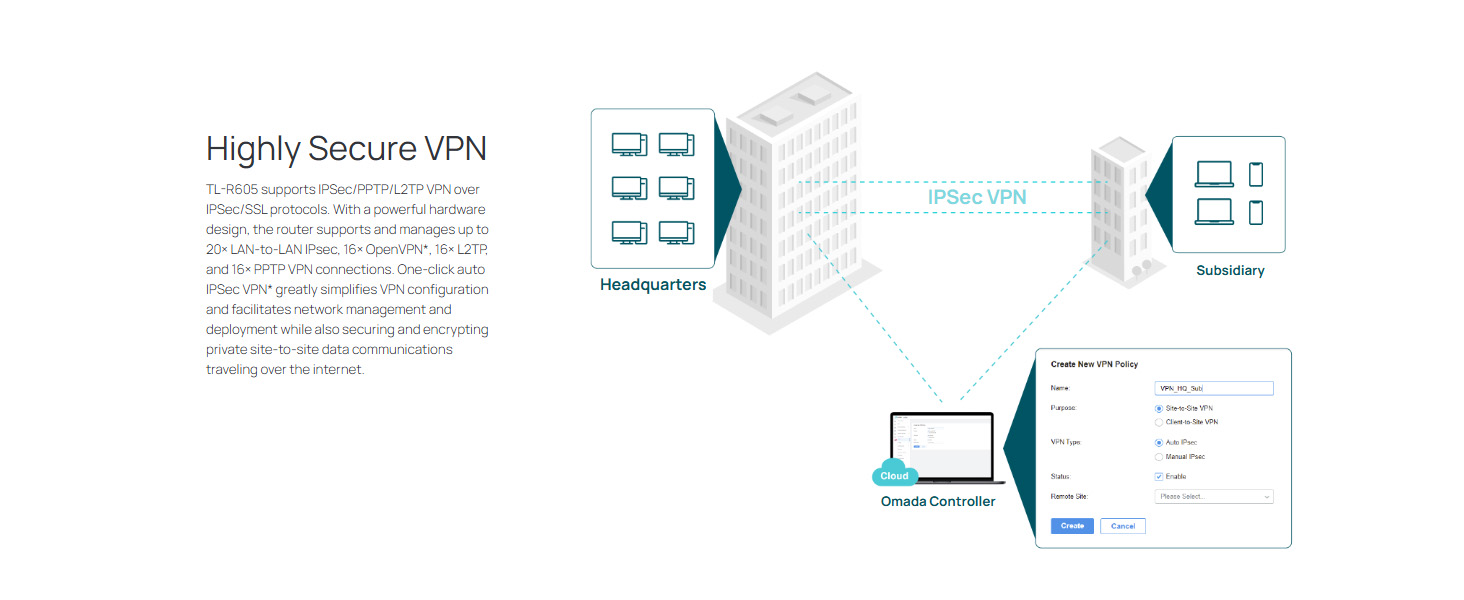
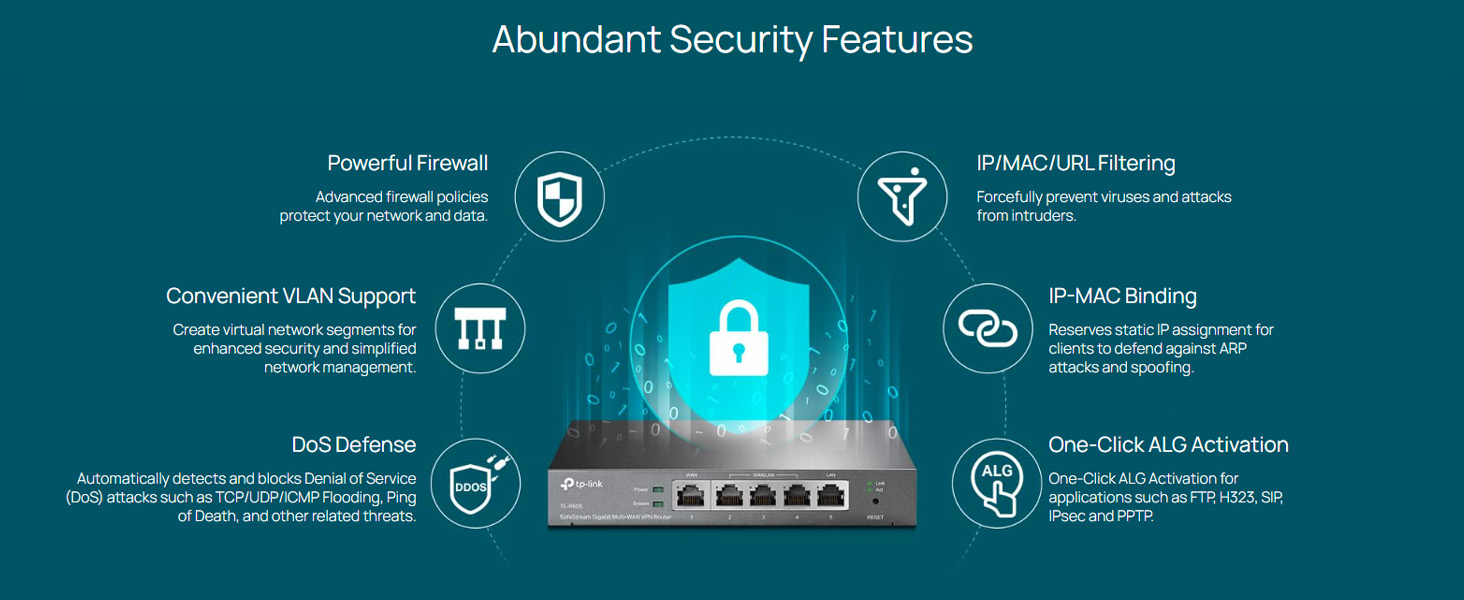
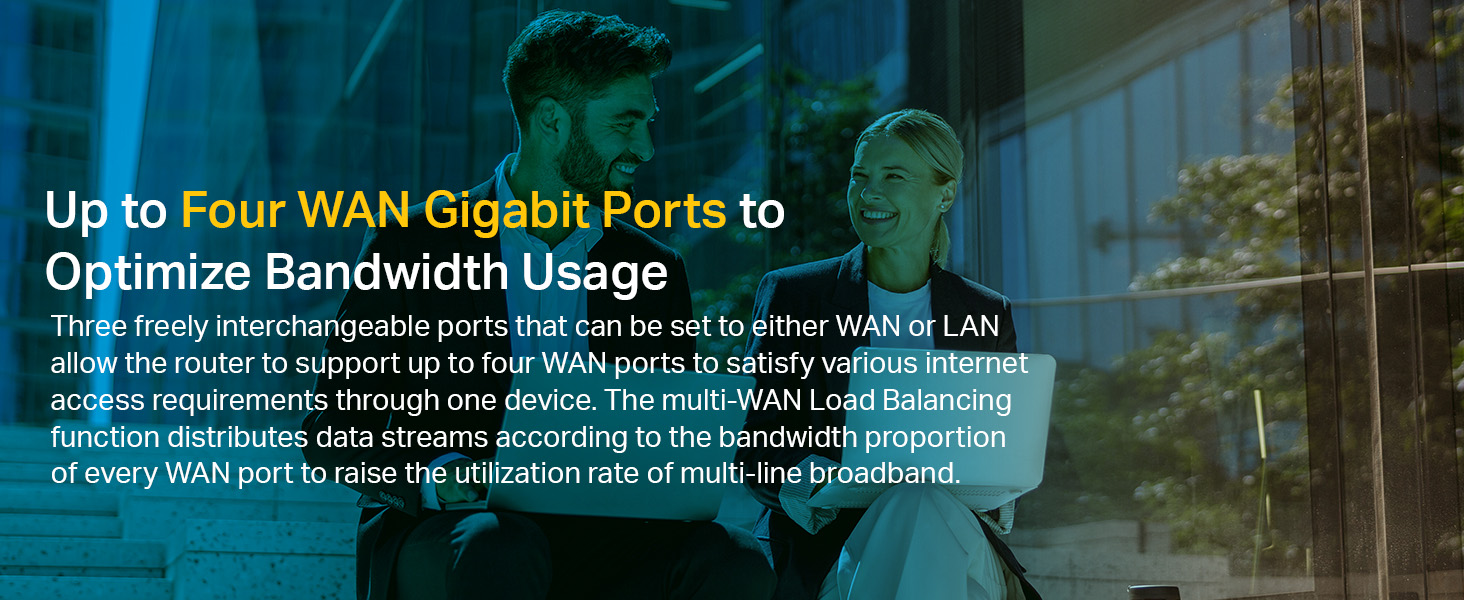
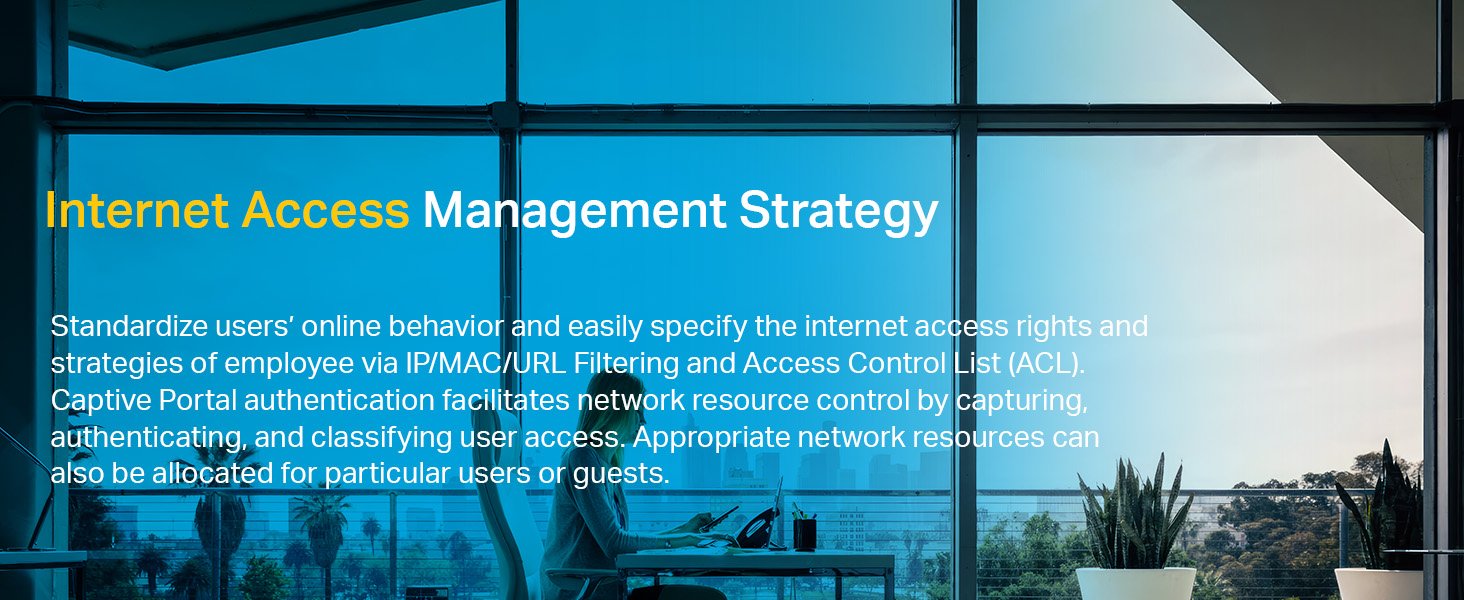
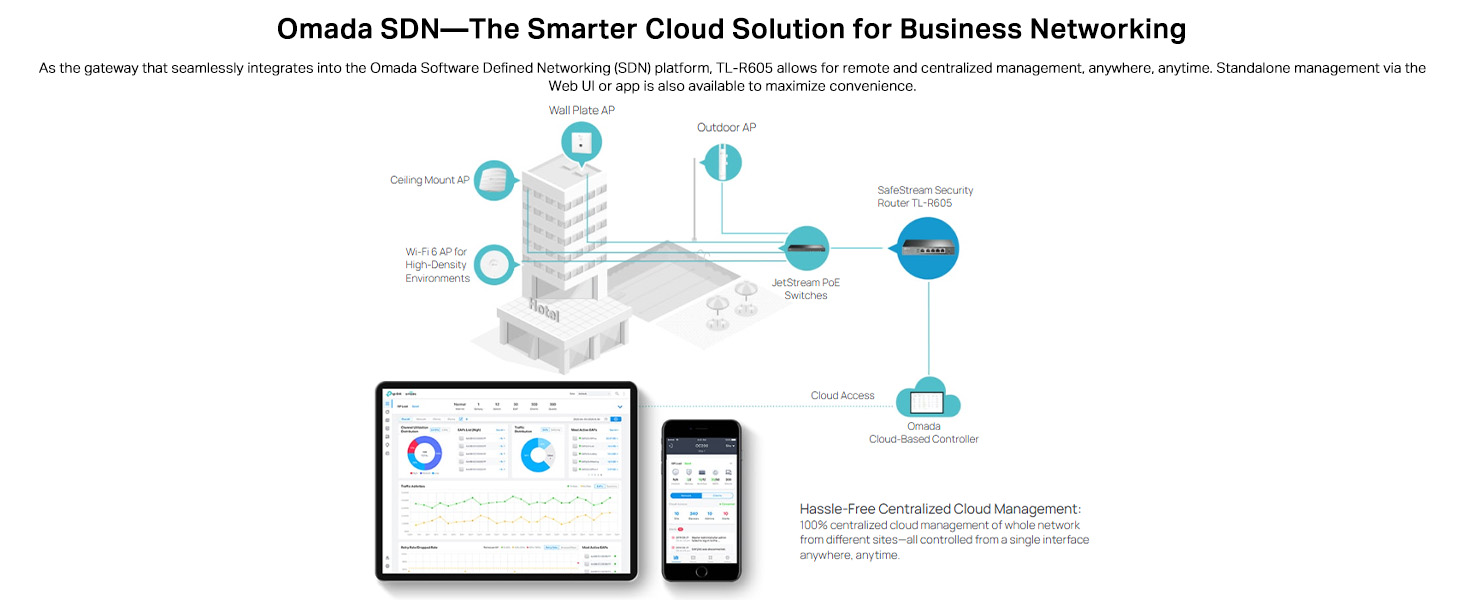
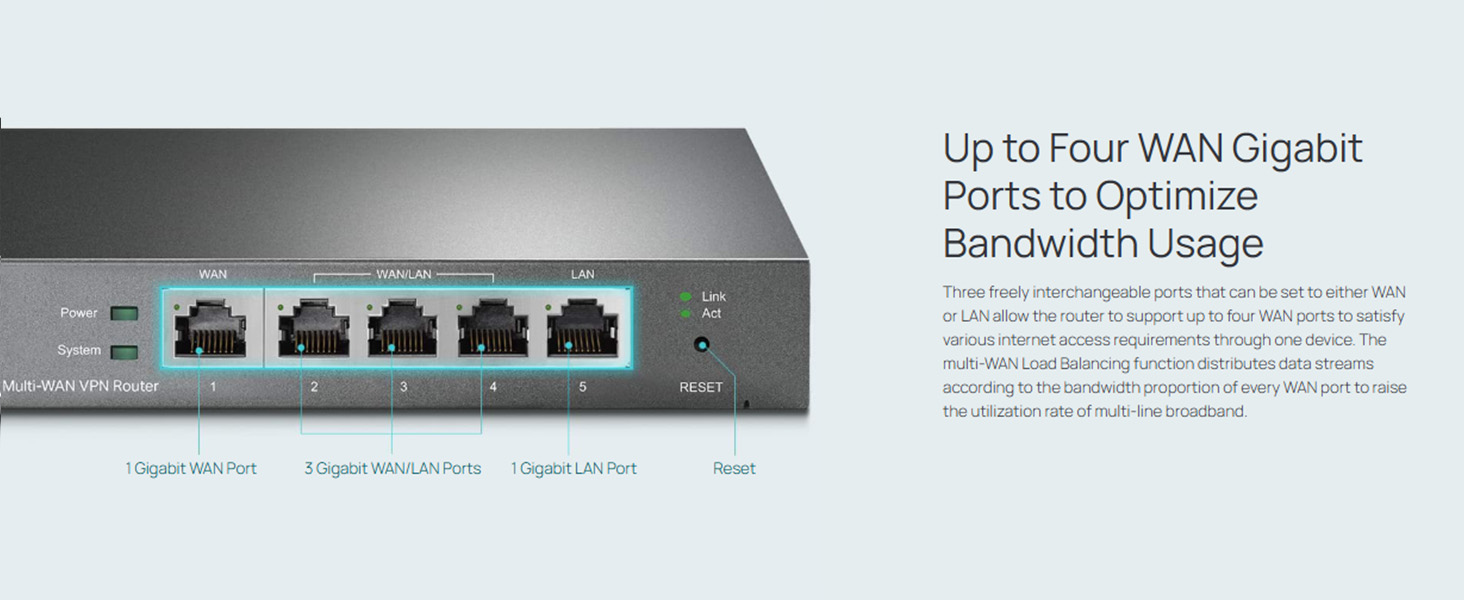
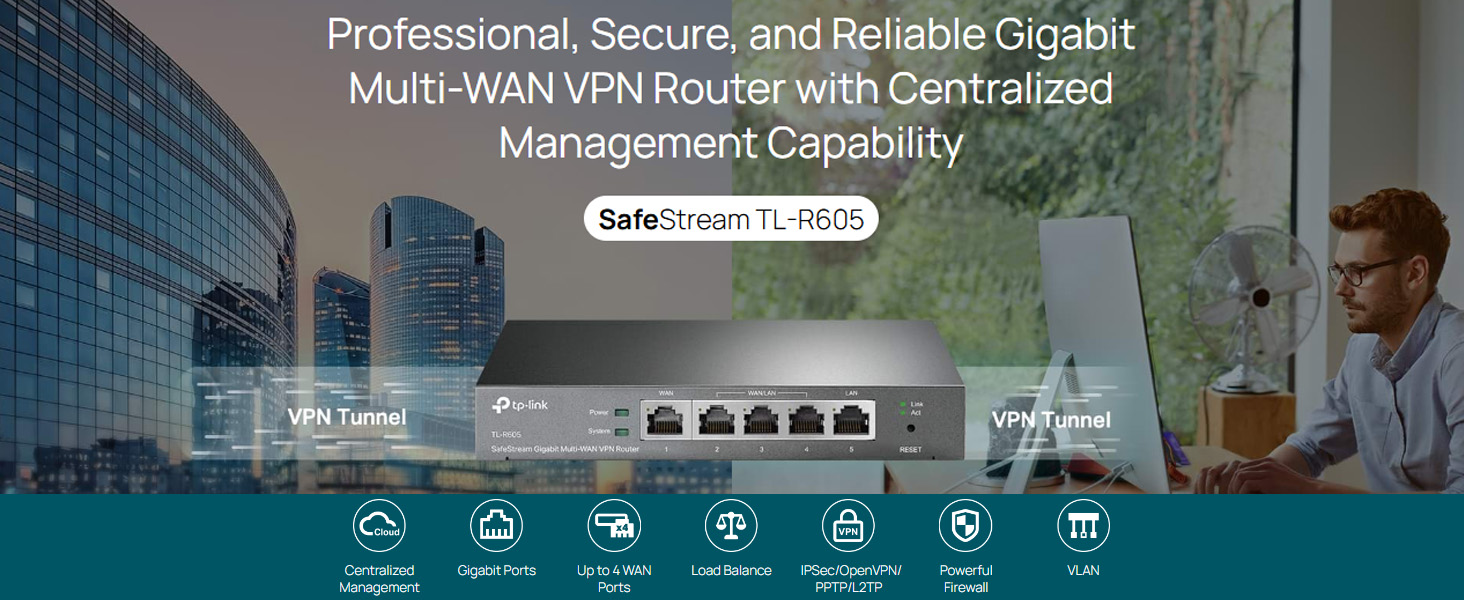
The TP-Link ER605 (TL-R605) is a high-performance wired VPN router designed for SMBs and home offices, featuring up to 3 gigabit WAN ports with load balancing, 5 gigabit LAN ports, and USB WAN backup. Integrated with Omada SDN for centralized cloud management and zero-touch provisioning, it offers enterprise-grade security with SPI firewall and VPN support. Its robust build includes lightning protection and efficient cooling, ensuring reliable, high-speed 1000 Mbps connectivity and seamless multi-line broadband utilization.


| ASIN | B08MH4VLR3 |
| Antenna Location | Home |
| Antenna Type | Internal |
| Best Sellers Rank | #3,028 in Computers & Accessories ( See Top 100 in Computers & Accessories ) #31 in Routers (Computers & Accessories) |
| Box Contents | Gigabti VPN Router ER605, Power Adapter, Quick Installation Guide, RJ45 Ethernet Cable |
| Brand | TP-Link |
| Brand Name | TP-Link |
| Colour | gray |
| Compatible Devices | Personal Computer |
| Connectivity Protocol | Ethernet |
| Connectivity Technology | Wi-Fi |
| Control Method | App |
| Controller Type | App Control |
| Customer Reviews | 4.1 out of 5 stars 1,891 Reviews |
| Data Transfer Rate | 1000 Megabits Per Second |
| Frequency | 5 GHz |
| Frequency Band Class | Single-Band |
| Global Trade Identification Number | 06935364089597 |
| Has Internet Connectivity | Yes |
| Has Security Updates | Yes |
| Importer Contact Information | TP-Link India Private Limited Office No.1, Tower 2, Level 2, Raiaskaran Tech Park, Andheri Kurla Road, M.V Road, Andheri East-400072 Contact: Toll Free 1800-209-4168, [email protected] |
| Is Modem Compatible | Yes |
| Item Dimensions L x W x H | 26L x 19W x 6H Centimeters |
| Item Type Name | VPN Router |
| Item Weight Unit of Measure | 658 g |
| LAN Port Bandwidth | 10/100/1000 Mbps |
| Manufacturer | TP-LINK CORPORATION LIMITED, TP-Link Systems Inc. 10 Mauchly, Irvine, CA 92618, USA or TP-Link India Private Limited Office No.1, Tower 2, Level 2, Raiaskaran Tech Park, Andheri Kurla Road, M.V Road, Andheri East-400072 |
| Manufacturer Contact Information | TP-Link Systems Inc. 10 Mauchly, Irvine, CA 92618, USA or TP-Link India Private Limited Office No.1, Tower 2, Level 2, Raiaskaran Tech Park, Andheri Kurla Road, M.V Road, Andheri East-400072 |
| Manufacturer Part Number | TL-R605 |
| Maximum Upstream Data Transfer Rate | 1000 Megabits Per Second |
| Model Name | TL-R605 |
| Model Number | ER605 |
| Number of Ports | 4 |
| Operating System | Microsoft Windows 98SE, NT, 2000, XP, Vista or Windows 7/8/8.1/10 MAC OS, NetWare, UNIX or Linux |
| Other Special Features of the Product | Remote Access |
| Packer Contact Information | Pacific Technology Private Limited Survey No, 57/3/55, 57/2/56, 57/1/57, Silver Industrial Estate, village Bhimpore, Nani Daman, daman Dadra and Nagar Haveli and Damn and Diu, India 396210 |
| RAM Memory Installed | 5 MB |
| Router Firewall Security Level | True |
| Router Network Type | Wired |
| Security Protocol | WPS |
| Special Feature | Remote Access |
| UPC | 767531887493 |
| Unit Count | 1 Count |
| Voltage | 9 Volts |
| Warranty Description | 3 years Domestic warranty |
| Wireless Communication Standard | 802.11a, 802.11b |
| Wireless Compability | 802.11a, 802.11b |
J**G
Reliable and Fast – Perfect Router for My Small Office Setup
I’ve been using the TP-Link ER605 for a few months now, and it has been rock-solid since day one. I got it to upgrade the network stability in my home office, and I’m really happy with how it performs. The setup was quite straightforward, especially with the Omada Controller, which makes managing the network super easy. I can monitor everything in one place, and the interface is clean and simple to use—even if you're not super technical. One of the biggest reasons I bought this router was for its load balancing and VPN support, and it delivers exactly as promised. I have two internet connections, and the ER605 handles both seamlessly, automatically balancing the traffic and switching if one connection drops. This has been a huge help during Zoom calls or while transferring large design files. Security-wise, it has all the features I needed—firewall, VPN, DoS protection, and more—and everything runs smoothly without slowing down the speed. I’ve also noticed it runs cool and has a solid build quality.
V**U
Good for home network and connecting multiple internet connection
Good product . need to know how to setup before buying . online videos are not available for complete setup . it can be used with omada controller - software and hardware . but it was not connecting with software omada controller and no proper tutorial on how to connect or what was the issue . but product is good . had option of connecting USB dongle as one Internet connection . so total 3 WAN ( 2 dedicated , 1 LAN/WAN ) + 1 USB WAN . i hav tried 3 WAN. but usb need to check . my question is can we have total 4 connected and can we use all 4 as WAN input .
P**O
Must have for Multiple ISP Connections at home or small office
TLDR one-line review: If you have or want multiple ISP Broadband at home and want automatic failover when one link fails, this device is your answer. The rest is going to be a rather long review. It is meant for techies. I advise everyone to read so as to understand WHAT THE HELL is this device. I need to explain my setup for this and why this device was required. Preamble ======= First, have a look at my SOHO network map diagram (last pic). I have a lot of devices AND I PREFER WIRED ETHERNET network. Earlier I had Airtel Xtreme Fibre connection ₹799/mo plan, 100 Mbps Down/Up. Then one day the network went down and was off for 5 days consecutive. I am an IT contractor working from home and for those 5 days, I had to work from my in-laws' home because I paid by the days I work. It was then I decided that I need a backup. So I applied for BSNL FTTH (100 MBps plan) and it was installed. Now, my next question was how to do automatic failover. How to do load balancing (not that I needed that)? Can I combine the two ISPs to get more speed? I research and I got the answer - Tp-Link Omada ER-605 Gigabitt Multiwan router. THE GOODIES =========== 1. Gigabit is a must otherwise network speed above 100 Mbps is curtailed. Check. 2. The router must be able to connect to at least 2 ISPs. This one has one dedicated WAN port and four more RJ-45 ports, 2 of which can be configured as WAN. In addition, it can accept a USB modem with SIM, etc. Check. 3. It can do automatic failover. Check. 4. It can do load balancing. Check. 5. It can distribute internet connection and thereby upping the speed in theory. But note that it won't combine the two 100 Mbps plan into a 200 Mbps circuit. So there. 6. It can do MAC-ID based address reservation (assign static IP to certain devices). I have assigned static IP to my Linksys Wifi Repeater/Extender, NAS and Brother Laser Printer. Check. I have connected the devices as follows: a) Airtel Xtreme Router ==> ER-605 b) BSNL FTTH Router ==> ER-605 c) ER605 ==> Netgear Gigabit Switch d) Netgear Gigabit Switch to Home Ethernet Network. Now I am fully satisfied. I tested all features including link failure (I popped out the input cable from ER-605). Happy to report everything worked fine. HOWEVER ... ========== There is always a however, isn't it? 1. First of all the ER-605 must be configured and setup. 2. By default only one WAN port is enabled. We must enable the other WAN ports. 3. You must set up and enable Load Balancing, define the primary link and secondary link and Failover (Enable backup link when any primary WAN fails). 4. The default router address is 192.168.0.1. You may need to change it. I had to change it to 192.168.1.1 because my existing devices, especially the printer were with static IPs in 192.168.1.xxx. This is done from ER-605 page --> Network --> LAN 5. You will most certainly have to change the LAP IP address of the ISP routers on a different subnet; if you don't you can never access them. I changed the LAN IP address of the Airtel router to 192.168.0.1 and the BSNL router to 192.168.2.1. - Now I can access ER-605 via http://192.168.1.1 - To reach the Airtel router I type http://192.168.0.1 in the browser - It is http://192.168.2.1 for BSNL router It takes time and patience. As usual router box does not contain a guide (cost cutting, green initiative and all that). The online manual is confusing and even misleading at times. I had to depend upon YouTube videos even though I am fairly competent at Networking and setup (my full home network is set up by me). Some basic setups for Load Balancing and Failover ======================================= 1. Log in to the ER-605 page (https://192.168.0.1; I changed this and for me it is 192.168.1.1) 2. Network --> WAN. WAN port is already enabled. Enable the second WAN1 port. Connect the second ISP router to this port. Router will reboot. 3. Click Transmission --> Load Balancing ... a) Basic Settings Tab: Check the "Enable Load Balancing" option only. Leave all others unchecked. ... b) Link Backup Tab: Create a rule and select Primary and Secondary connections. For me, it was WAN = Primary, WAN/LAN1 = Secondary/Backup. Mode = Failover(Enable backup link when all primary WANs fail). Enable Check box = Ticked. ... c) Online Detection Tab: You will see both WANs. Click on the edit icon of each and set Mode = Auto for both. (For some weird reason, it was setup to "Always Online").
G**.
Great one for the price
Compared to its price, it’s actually great. It’s handling my requirements really well. This is a wired router and you would need an access points if you’re building wireless networks. It’s managing over a dozen subnets with bulk of custom firewall rules without a sweat.
J**Y
Missing adapter
The power adapter is missing, and I received a used item
A**N
Good Quality
Great
K**N
Best router at this price.
I am a network professional and this box is too good for its price. It does perfect load balancing. I have two 150MBPS WAN links and it gives a throughput of 300 MBPS. Its not limiting to 100 MBPS under load balancing as reported by some users. May be its a new firmware. Fail over also happens smoothly within 10 seconds.Only drawback is the box is slow. It takes five minutes for the router to be up from cold start and any dynamic changes in the policy takes close to 60 secs before being implemented. Best to go for home set up.
A**H
Good
Good
C**I
Un vero gioiello della Tp-Link
INTRODUZIONE. Non sono un ingegnere, ma un semplice tecnico informatico, quindi perdonatemi se userò qualche termine poco adatto nell’intento di spiegare, in maniera popolare, le principali meraviglie di questo apparecchio, motivi che mi hanno fatto venire la voglia di acquistarlo. Non avevo nessuna necessità di comprare questo apparecchio, ma il mondo delle reti internet è un tema che mi ha sempre affascinato, perciò, appena sono venuto a conoscenza (per pura casualità) dell’esistenza di una meraviglia come questo oggetto, non ho saputo resistere e l’ho subito ordinato. Il router, da come si presenta, non può lavorare a più di 1000mb per porta. Spero raggiunga veramente questa velocità. Per i test sulla mia zona è perfetto, ma chi ha fibre che superano i 1000mb, non deve acquistare questo prodotto, ma uno assai più costoso, con almeno 10000mb per porta, a patto che esistano. CENNI GENERALI. Nella confezione viene fornito l’alimentatore (220V ingresso) con uscita 9V=, un cavo LAN cat5 a mio giudizio da buttare, i gommini di supporto per appoggiarlo su una superfice piana e una guida rapida multilingua. L’apparecchio è leggerissimo e piccolo, quindi si può alloggiare ovunque senza grossi problemi e si può maneggiare con estrema facilità. Anche se non ho provato, aggiornando il firmware alla versione "ER605(UN) V1_1.1.1_20210723" o successiva, potrebbe essere disponibile anche il supporto per IPv6. Nel firmware fornito in dotazione (almeno sull'apparecchio che ho io), il supporto IPv6 sembra inesistente. “INSTALLAZIONE”/CONFIGURAZIONI RETI (vedi figura 1). Si possono "installare" fino a max 4 WAN (4 linee provenienti da 4 modem) e una LAN (dove andranno “allacciati” tutti i pc locali). Ogni WAN deve essere una rete a se (LAN inclusa). Il router ha una porta solo WAN, una porta solo LAN e 3 porte “intercambiabili”, WAN/LAN. Se queste si impostano come LAN, immagino che le 3 porte si comportano come switch di rete, ma non ho ancora provato bene questa modalità. Alle reti WAN possono essere assegnati Ip statici o in DHCP (che in questo caso vengono assegnati automaticamente dai modem/router del vostro gestore telefonico). Esempi di configurazione degli IP: wan1: 192.168.1.x 255.255.255.0 wan2: 192.168.2.x 255.255.255.0 wan3: 192.168.3.x 255.255.255.0 wan4: 192.168.4.x 255.255.255.0 LAN: 192.168.10.x 255.255.255.0 COLLEGAMENTI EXTRA (vedi figura 2). La mia passione mi ha spinto anche alla “creazione” di un firewall con una distribuzione linux: IpFire. Sono riuscito a mettere questo router “in cascata” con il firewall IpFire, senza riscontrare nessuna attenuazione di banda. TEST VELOCITÀ (vedi figura 6). Nella mia zona, la fibra non va più veloce di 100mb, così mi domandavo se questo router lavora veramente alla velocità di 1000mb. Con appositi collegamenti e configurazioni, sono riuscito a trasferire un file da un PC ad un altro, “facendo passare i pacchetti” attraverso la porta WAN1 e LAN di questo router, incluse le reti del firewall IpFire montato “in cascata” (come spiegato sopra). Come vedete in figura, i risultati sono stati sorprendenti!!! Sono sicurò al 90% (metto un 10% di errore per coscienza) che gli stessi risultati si ottengono anche con le fibre da 1000mb. APERTURA PORTE CON IPFIRE “MONTATO” (vedi figura 5). (Come aprire una porta “dall’esterno” verso un IP della rete GREEN di IpFire). Mi sembra molto difficile descrivere le procedure dettagliatamente, ma non è un concetto complesso. Lo scrivo in poche parole. Dai modem i pacchetti (sulle porte da aprire) devono essere girati a questo router, che provvede a girarli a IpFire, che a sua volta provvede a girarli all’IP del server locale interessato. COLLEGAMENTO “INGEGNOSO” (vedi figura 3). Ho un cellulare con una scheda Wind che mi dà giga illimitati e buona velocità di navigazione. Perché non attaccare anche questa linea ad una Wan di questo router? Solo che il cellulare non ha la presa lan e non ho intenzione di “staccare” la sim in continuazione per usare appositi modem. Guarda la figura 3 per vedere come ho risolto questo problema (anche se però questo sistema penalizza un po’ la velocità di navigazione della linea WAN dove è collegato il cellulare). FUNZIONI A ME PREFERITE DI QUESTO ROUTER (vedi figura 4). In Load Balancing funziona. Sfrutta tutte e 4 le linee WAN "installate". Se una delle linee WAN va KO, ci sarà un piccolo disagio, dovuto ai tempi impiegati dal router per capire che una linea WAN è caduta. Poi tutto si stabilizza automaticamente, senza nessun intervento umano. In questa modalità, è possibile sfruttare tutte le linee wan (almeno 2 sicuramente) per navigare e scaricare. La nota dolente è che, dagli studi che ho fatto, non mi pare che il router riesca a capire quale linea WAN sia più “libera da traffico”. Scaricando contemporaneaamente più file dal browser infatti, ho notato che a volte vengono scaricati tutti da un’unica linea (lentezza), e a volte vengono usate più linee, una per ogni file (velocità). E la scelta della linea WAN da parte del router mi pare sia del tutto casuale, sia con “Application Optimized Routing” attivata che disattivata. Non mi è molto chiara la funzione di “Optimized Routing”, ma è meglio tenerla attiva, perché disattivata mi ha causato grossi problemi di connessione verso alcuni server FTP. La cosa sorprendente della funzione Load Blancing è che, in caso di scaricamento di file “con più connessioni” come i Torrent, la velocità totale del download (singolo file) è data dalla somma delle velocità delle linee Wan. Ottimo questo!!!! Altre cose notate: con Load Balancing attivo e “Optimized Routing” disattivata, ottengo la somma delle velocità delle linee WAN con SpeedTest e Torrent (scaricamento di un singolo file), ma non col download del file dal browser. Con Load Balancing attivo e “Optimized Routing” attiva, ottengo la somma delle velocità delle linee WAN con Torrent (scaricamento di un singolo file), ma non con lo SpeedTest e naturalmente nemmeno col download del file dal browser. Agendo su "Link Backup" (Figura 7), dalle prove fatte, mi risulta che il router dovrebbe comportarsi come Failover, ossia, solo se cade la linea (o le linee) base viene attivata la linea WAN di backup. Anche in questa modalità si verifica un disagio di navigazione temporaneo se cade la WAN primaria. Mi fermo qui. Ho trattato solo gli argomenti che mi hanno colpito di più. Le funzioni di questo apparecchio sono tantissime e nemmeno io sono riuscito a comprenderle tutte. Spero troviate utile questa recensione e spero di aver usato termini e concetti giusti per tentare di spiegarmi più chiaramente possibile.
M**D
Très bon routeur, de l'utilisation amateur à professionnelle.
Autant certains produits TP-link m'ont posé des problèmes, autant ce routeur n'a jamais failli.
A**I
As described
As described
P**1
Polecam
Świetny sprzęt za dobrą cenę
D**D
Si buscan un switch, se lo recommiendo!
Muy facil para instalar y funciona muy bien.
Trustpilot
1 week ago
1 month ago