Desertcart purchases this item on your behalf and handles shipping, customs, and support to Seychelles.
🖨️ Print smart, stay ahead—because running out of toner is so last decade!
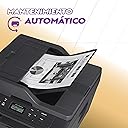
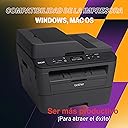
The Brother DCPL2540DW is a monochrome laser multifunction printer delivering sharp black-and-white prints at up to 30 pages per minute. Featuring wireless and wired connectivity, a 250-sheet adjustable paper tray, and automatic duplex printing, it’s designed for busy professionals who demand speed and reliability. Integrated with Amazon Dash Replenishment, it automatically orders toner when running low, ensuring uninterrupted productivity. Compact yet powerful, it supports mobile printing and comes with a 1-year limited warranty and free lifetime phone support.


| ASIN | B00MFG57ZK |
| Additional Printer Functions | All In One |
| B&W Pages per Minute | 30 pages_per_minute |
| Best Sellers Rank | #254,776 in Office Products ( See Top 100 in Office Products ) #253 in Laser Computer Printers |
| Brand | Brother |
| Built-In Media | Duplex Unit, Phone Support |
| Color | Black |
| Compatible Devices | Laptops, PC, Smartphones |
| Connectivity Technology | Ethernet, USB, Wi-Fi |
| Control Method | Voice |
| Controller Type | Amazon Alexa, Vera |
| Customer Reviews | 4.3 out of 5 stars 6,052 Reviews |
| Display Type | LCD |
| Duplex | Automatic |
| EU Spare Part Availability Duration | 1 years |
| Global Trade Identification Number | 00012502638858 |
| Hardware Interface | USB 2.0 |
| Initial Page Print Time | 2 seconds |
| Ink Color | black |
| Item Dimensions D x W x H | 15.7"D x 16.1"W x 12.5"H |
| Item Type Name | Color Laser Printer |
| Item Weight | 24.5 pounds |
| Manufacturer | Brother Printer |
| Maximum Copy Resolution Black and White | 3000 dpi |
| Maximum Media Size | 8.5 x 14 inch |
| Maximum Print Resolution Black and White | 3000 dpi |
| Maximum Sheet Capacity | 250 |
| Maximum print Resolution Color | 3000 dpi |
| Model Name | Brother Monochrome Laser Printer |
| Model Number | DCPL2540DW |
| Model Series | Monochrome Laser Printer |
| Number of Trays | 1 |
| Other Special Features of the Product | Auto Document Feeder, Auto-Duplex, Compact, Display Screen |
| Output sheet capacity | 250 |
| Paper Size | 12.5 |
| Power Consumption | 510 watts |
| Print media | Envelopes, Paper (plain) |
| Printer Connectivity Type | Ethernet, USB, Wi-Fi |
| Printer Output Type | Monochrome |
| Printer Type | Laser |
| Printing Technology | Laser |
| Resolution | 3000 x 3000 dpi |
| Scanner Type | Sheetfed |
| Special Feature | Auto Document Feeder , Auto-Duplex , Compact, Display Screen |
| Specific Uses For Product | Office |
| Total USB 2.0 Ports | 1 |
| Total Usb Ports | 1 |
| UPC | 012502638858 |
| Warranty Type | Limited Warranty |
| Wattage | 510 watts |
O**R
Great machine that can print shipping labels.
I've had the printer for about four months at this point, so I figured that was long enough to write a fairly honest review (though I'll certainly update in the future as I have more experience with the printer). I'll start by saying that I love this printer so far. I've really had no negative experiences with it that would cause me to regret the purchase. If you're in the market for a laser printer, you'll be happy with this product. Ink consumption: As stated, I've had the printer for about 4 months, and with the "starter cartridge" supplied, I have about 1/3 ink left, which I feel is pretty good considering the amount I print. I've printed quite a few full images with the printer which uses a lot more ink than just text, so I consider that one reason the ink has gotten down to the 1/3 mark already. I also use "full quality" for most print jobs, though there is a "toner saver" feature if you want to really squeeze all the print jobs out you can. Quality: text is perfect, I have no issues. Image quality is decent for a laser printer, but I'd warn against buying this one if you need it primary for image printing. You'll be better off with a color printer. But, if you need to print out the occasional graph or something, it's not too shabby. But let's be honest, you don't buy a laser printer for great "photo quality" prints. This sucker is speedy. I don't time it, but usually by time I walk into the other room (My printer is in a different room than my computer), the print jobs are already done and waiting. The scanner works as hoped. The copier works perfectly. Really, nothing awful to report here. There is a small learning curve when using the automatic document feeder. If I remember correctly, it's only used when making copies, and not for scans. I may be wrong about that though. The wireless setup was a snap. I connected it, and then I just leave the printer "always on." It goes into "sleep mode" when idle, and wakes up for print jobs. I'm not certain, but I think this is actually better for electrical conservation in the long run, as startups and shutdowns use more electricity, generally speaking. This also ensures you don't have to wait very long for the printer to warm up. (Please let me know if I've got this wrong, or if it's bad to leave the machine on, but I think it's okay). One side note, since this was the biggest concern I had when purchasing the machine: You CAN print multiple shipping label sheets from the normal document feeder. The machine will prompt you to use the front facing feeder, where you have to feed in one sheet at a time, but it doesn't force you to do so. I usually just choose "widest thickness" for paper type, and then choose "labels" when printing. I've done up to about 6 sheets at a time, though I would warn against too many, as the hotter the machine gets, the more likely it is a sticker might peel from the label sheet and gum up the works. To be clear, this is not suggested by the retailer, and might even void the warranty if you were to have an issue, but so far, I've had no problems. Overall, this was a great value. The printer is going strong after 4 months of medium use, with most features being used.
R**N
and is easy to navigate using the MENU
This Brother DCPL2540DW Monochrome Laser Multi Function Printer / Copier / Scanner has a small footprint, and comes with a 35 page automatic document feeder (ADF), adjustable 250 page capacity paper tray, starter toner cartridge, but not a USB cable (most printers these days don't ship with USB / printer cables anymore). The on-device control interface has a two-line lcd display and a few labeled buttons. The on-device menuing system is at most 3 levels deep only, and is easy to navigate using the MENU, +/UP, -/DOWN, OK, and STOP/EXIT buttons. The device is easy to set up for wireless printing, and if you have a USB / printer cable, for wired printing as well. The included Basic User's Guide is minimalistic but sufficient to get you started in the right direction, and a link to a fuller online user's guide is provided. I have a USB cable so I initially set this device up for wired printing from my Windows 8.1 computer. The device driver that's automatically installed after Windows detected the device is not a full-featured driver, so I installed the MFL-Pro Software Suite from the included CD. Once that software suite has been installed, if you bring up the Devices and Printers view from the Windows Control Panel and right-click on the icon for this printer, you'll see that the context menu that pops up has separate Printing Preferences and Printer Properties menu items. The Properties dialog box gives you options such as what pages of your document to print, and a check box to select or unselect duplex printing. The Preferences dialog box gives you options such as enable Print Preview, and Print Document with a custom settable Watermark (such as the word Confidential, or Draft, etc). After some initial testing of the printing and scanning functionalities (discussed more below), I went back to the MFL-Pro Software Suite mentioned above to set the device up for wireless operations, which required some software to be installed, detection of your network, and providing the appropriate password for your wireless network. The set up process was a breeze and I did not encounter any problem. * PRINTING The print speed is as advertised -- about 30 pages per minute (ppm), slower of course if you're printing double-sided. You can set resolution to 300, 600, and 1200 dpi. Both text and graphics outputs are clear and crisp. To save money, if the documents you're printing are not that important, you can enable 'Toner Save' option, and / or print multiple document pages per output page. I've done several 30-50 page print jobs, and have so far not experienced paper jams. You can use different sized paper, including legal and envelopes, by just adjusting the paper guides. Printing on envelopes requires more work that's described in the user's guide, but there is a cool video in the manufacturer's support website that shows you what to do. If you have the MFL-Pro Software Suite mentioned above installed, look for the Brother Utilities desktop icon and click on it, then choose Support -> On-line help and FAQ's. On the manufacturer's "FAQ's and Troubleshooting" web page that this gets you to, look for the Video FAQs in the "Other" category, and you'll see an entry for Printing on Envelopes. One thing I noticed with printing is that once a document is opened, changes to Printing Preferences (say, enabling or disabling printing watermarks) do not take effect until you close and reopen the document, which can come as a surprise to some. * SCANNING You can scan by putting your documents through the automatic document feeder or placing them one at a time onto the scanner glass. There is an on-device SCAN button that you can press, but I find it easier to control scanning using the software installed on my Windows computer. Click on the Brother Utilities desktop icon if you have the above-mentioned MFL-Pro Software Suite installed, then select SCAN -> ControlCenter4 (CC4). With the CC4, you can do Image or OCR scans, and save the results in formats such as JPEG, TIFF, Windows Bitmap, PNG, PDF, Searchable PDF, etc. By default, the results will be saved to labeled folders within the Control Center 4 folder under Documents>Pictures, unless you specify a different location. If you have a supported email application such as Microsoft Outlook, you can set things up so that scan results can be automatically attached to an email. Because I only use free web mail services (which are not supported), I wasn't able to test this functionality. Scanning speed is fast. In my testing, I can confirm that saving results into JPEG, PDF, and Searchable PDFs did work without a problem at all (I did not attempt to save the results into the other possible formats). * COPYING There are two limited ways you can achieve 2-sided copying if you want to save paper. The first way is to place the document you want to copy one page at a time onto the scanner glass. Before you start copying, press the on-device OPTION button to navigate to the Two-Sided menu option, temporarily enable it, then press the START button. With this method, you will be asked to manually flip the document when the device is ready to fill up the back of an output sheet. The second way is to feed the pages of your document through the automatic document feeder (ADF). Again, before you start copying, press the on-device OPTION button to navigate to the Two-Sided menu option, temporarily enable it, then press the START button. What you'll get is the following: Say you feed two sheets of paper to the ADF, and each sheet contains the word "FRONT" on one side, and "BACK" on the other side. If you stack these input sheets such that the sides with the word "FRONT" are facing UP, both sides of the single output sheet will contain the word "FRONT." So this method makes sense only if you want to save paper by copying single-sided inputs to double-sided outputs. * TONER CARTRIDGE You can replace the included starter toner cartridge with either the TN630 (max yield approximately 1200 pages) or TN660 (max yield approximately 2600 pages) cartridges. At the time of this review, the TN630 and TN660 are selling in Amazon for about 43 and 68 dollars, respectively.
B**N
Great printer! Deep Sleep = FIXED!
Once you get the settings straight, this printer is A+. This review will not focus on it's advertised features, but I can confirm that it does indeed do everything it says it will, fantastically. For a more in depth review on that kind of stuff, look at the other reviews. Really nothing more can be said that has not already been said. First off, let me start off by saying that this printer was a pain in the butt to setup. I have been tinkering with and building computers since the mid 90's, and this one threw me for a loop for a few hours. After searching and searching and toggling this and toggling that, I was finally able to remedy the "Deep Sleep" issue that most, if not all, OSX/iOS users have with this printer. The printer would work great for a few minutes, then you'd hear a click inside of the machine followed by unresponsiveness and "Deep Sleep" on the screen. Nothing would "bring it to life" but a reboot of the machine. You could not pull toner levels from it, load it's browser-based interface, or send print jobs. Upgrading the firmware seemed to fix a lot of people's' problems but it did not fix my problem. To cut to the chase, these are the 3 settings I changed to fix this problem. They're accessed in the printers browser-based settings. You might have success changing these on the actual printer itself, but I did not try this. To access this page on Windows, open your web browser and for the URL, put in the IP of the printer. For example, my printer is set to the IP of 10.0.0.177 so I simply typed that in the address bar of Chrome and pressed enter. If you do not know your printers IP, on the printer, press Menu then goto Network> WLAN> TCP/IP> IP Address. Once you're at the web-interface, these are the settings that I changed: General Tab> Status> Automatic Refresh: On 1) Network Tab> Wireless Sub-Tab> TCP/IP (Wireless)> Boot Method: STATIC 2) Network Tab> Wireless Sub-Tab> TCP/IP (Wireless)> Enable APIPA: UN-CHECKED 3) Network Tab> Wireless Sub-Tab> TCP/IP (Wireless)> IPv6 Sub-Menu> IPv6: Enabled All other settings left stock. It will prompt you to restart the printer, and once it's back on, everything should be golden. All setttings work like a charm INCLUDING airprint! Many people were having problems with that. You will also notice that the printer responds very quickly when accessing various settings and data through the browser-interface. This fix worked for my wireless setup, the same should go for a wired setup too. While changing the settings, goto Wired instead of Wireless. Good luck to you all.
D**G
Fantastic Machine: I have made over 16,000 copies and 4,000 scans. No problems
My 10 year old printer, for which I was spending 100s of dollars a year for ink cartridges, finally died. I spend a good deal of time looking at options for a multi-function laser printer (scan, copy, print) with an auto document feeder that would wireless scan and print and which I could print from my iPhone. I finally selected the Brother DCP-L2540DW after reading a large number of positive reviews. I was, however, very concerned with the price. At ~$100 dollars the price was low enough to make me really wonder if it would really do what the descriptions said. The printer arrived and was easily hooked up using a USB connection that I already had. I ran all functions multiple times without any problems including printing from my iPhone. I had some questions relative to installation of the software on a second computer so I called Brother. As noted by other reviewer it took a few minutes to get through but the individual I spoke was very knowledgeable and pleasant and quickly answered all my questions and offered to stay on the line till I had completed installation of a second machine. I did not use a USB connection for this installation but instead chose to do it all wirelessly. Wireless installation was very easy and went quickly without a hitch. The machine seems to be capable in all areas. I would categorize it as an exceptional deal for the money but caution that the materials of construction, hinge design, etc are not designed for heavy handed or heavy duty operation. But, they are more than sufficient if reasonable care is exercised. The only thing I would have liked was the ability to feed and print multiple envelopes but this is a minor thing. Have now used this printer regularly for about 6 months. It has performed flawlessly and met or, in most cases, exceeded my expectations. I do a lot of scanning and love the speed and ease the printer and document feeder deliver. I rarely recommend things but in this case I recommend it without reservation. After three months of fairly heavy usage I remain completely satisfied with the printer. No jams, no problems, good quality. Update. Printer now has made 16,000 copies and over 4,000 scans with no problems what so ever. Could not be happier
A**O
GREAT Printer and Basic Scanner!
Seven years ago, I purchased a Brother HL-2170W B&W Laser Printer from a local store for less than $100 on sale as my printing needs were mainly text documents, and the cost of inkjet printing was eating me out of home and office. My primary need was speed and network connectivity. That printer was a workhorse no matter what I threw at it! And finally just last week, the network connectivity stopped working but with USB, still churned out perfect pages in B/W clarity that was amazing. So, with the need to replace it I looked for a B/W Laser printer that had an auto-sheet feeding scan capability as well as the minimum capabilities of the HL-2170W. Thus, I found this printer. I received it this morning, and here are my opinions thus far; I'll update if anything changes - PROS - 1. SIZE - You just can't be the compact size of the Brother multi-function machines... they pack one heck of a punch in the small, lightweight footprint that they offer; no competitor can seem to squeeze the same features, capabilities and speed into the same size and weight, making this a clear winner! 2. CONNECTIVITY - With both wired and wireless capabilities for network printing, as well as wireless direct, tablet and phone connectivity through the Brother app (which will connect to a host of cloud services for data access), it's can't be beat for connectivity options. And of course, all else failing, there is that USB-2.0 connector on the back that can be utilized if someone has no need for the other options. 3. USER-CONSUMABLES - Since Brother splits their toner and fuser assemblies into two units, cost for cartridges is much less expensive to replace than other companies. HP for instance, bundles the toner/fuser together, charging a fortune when you run out of ink even though the fuser assembly has 2-3 times the lifespan of the toner; with Brother, you can replace the toner (rated for 2,600 pages) when needed and only have to replace the fuser when needed (rated for 12,000 pages). In the 7 years that I had the 2170W, I only replaced the fuser once. 4. PAPER HANDLING - Big 250-sheet paper tray for auto-feeding - half a ream at a time and completely enclosed, you don't have to constantly run and check for paper capacity; plus, since it is a drawer, it stays dirt, wrinkle, stain and relatively dust free before use. 5. FAST - Super fast printing that for the size and price point beats out it's competitors; plus with the duplex feature you can save paper and money while still getting crisp, clean prints. CONS - 1. PHYSICAL SCAN FEATURE - Not really a con, but something that was not mentioned and I didn't think about - the scan feature does not have duplex scanning - it is only single-sided so if you have multiple front/back pages to scan, you either (a) have to do it manually and turn them over, or (b) utilize the scan feature for one side, run them through a second time for the back side, then rearrange the pages in an app that will allow manipulation like that. 2. SOFTWARE SCAN FEATURE - Brother should be ashamed of the scan application that it encloses with the printer - it is *VERY* basic and POOR; I have utilized scanning applications that are included with scanners before and I have to say that this is about the worst - no true advanced scanning control features such as moire-removal/de-screening, lint/dust removal, sharpening, etc. Brother seems to believe that "advanced" features should be is controlling resolution, color vs. b/w, and file output type... very sad and the only place I slash this to 1 star. If you need more control over scanning I would definitely recommend finding a third-part app that will do will you need. 3. NOISE - I generally laugh about people who complain in reviews about the noise of a printer, as if they seem to think a jet engine is firing up in their office! If your printer sounds like that, you better run 'cause parts are going to fly! That being said, I do have to say that this printer has more noise in the rollers than the 2170W, which could be explained by additional complexity of the duplexing option, but overall is still quiet in the grand scheme of things... besides, with the speed of the printer even 100 pages printing means that the noise stops within a few short minutes. --- All in all - very highly recommended printer! Most definitely will satisfy SOHO users or small workgroups (up to say 5 people) that need to share a printer and have scan capability.
S**J
3 calls, 75+ minutes with support and still no fix. Get me a baseball bat....
This printer was a huge mistake. I saw negative reviews but thought, "hey! I'm tech savvy, I can set up networks, I know how to add drivers, this won't be any problem." Huge. Mistake. This printer is a nightmare. While it wasn't difficult to set up at all once I put my wifi info into the printer's settings, it only works after I pull the plug and restart it every time. The sleep mode is a disaster, and I have tried every fix people have listed online. The printer goes to sleep and wont wake up. Printer controls work (on the physical printer only, not from the computer) but there is no way to wake it up, and I can't even turn it off (yes, I have held the power button down for up to 30 seconds-- nothing). ANY time I want to print I have to first walk over to the printer, unplug it from the wall, plug it back in, and wait for it to restart. In my first call to tech support, while the guy was super nice, he solved nothing. His "fix" was to connect me to the printer via IP address instead of letting my computer find it like it had (so now none of the controls worked properly). Lo and behold, the sleep problem persisted. When I called back the next day, the female agent told me that I just had to "wake the printer up" every time. She advised me to change the sleep timer (you can only move it up to 50 minutes, and it should be able to go to sleep anyway). Of course, the problem is if you don't push any buttons or print anything for 50 minutes..... you got it, the printer goes to sleep and wont wake up. So unless you're printing a document every 50 minutes at all hours of the day-- this printer is not for you! Now I am on hold again (20 minutes so far!) and I plan to tell them to send me a box to return this piece of junk. For the record: when it prints-- it works great! Maybe I just got a lemon, but I would not trust this printer to not be a mess for anyone else. I do not recommend the gamble involved. At least with a mac / OS X. Nightmare. And it's so big it's going to be such a pain to return. I seriously hate this thing. I thought it would be such a convenience and all it makes me want to do is smash it with a baseball bat like I'm in Office Space.
S**D
Great Printer and Easy setup once you know what to do.
This is my third Brother laser printer and this one is by far the best one I have had. My two others were MFP, print, fax and scan, but they were not wireless nor were they network printers, but I had them plugged in to the router so I could print on the network, but couldn't scan unless I was hooked up directly. It was time for a new drum and let's face it the cost of these have come down so much that it was time for a new printer with wireless capabilities. I haven't sent a fax in years so this was the machine I wanted. It was a fair price and I was ready to get it installed and ready to print. The setup was easy, but if you have a Mac or want to use AirPrint on your IOS device keeping its connected to the network after its connected is a challenge or at least for me it was. I am glad I didn't write this review before I figured out my issues, honestly I was about ready to return the machine, but I am so glad I didn't. There are reports all over the forums and on Amazon about this machined how it loses connection when going into "deep sleep" and in order to print, especially with a Mac you have to turn off the printer and then back on and even then it may not work. Also with AirPrint once it's in deep sleep AirPrint doesn't work from your IOS device either. One solution to this problem noted by Brother is to update the firmware. That's always a good thing, but it didn't work for me. After some searching for a few days I discovered it's not so much an issue with the printer as it is with the Mac itself. Mac recognizes network or wireless printers it finds with Bonjour. Unfortunately for some when the Brother printer is in deep sleep and the Mac has been "sleeping" and you wake up the Mac, Bonjour fails to connect. Not sure why, but for me that's what was happening. So to fix the issue instead of adding the printer through Bonjour, I added using the IP address of the printer and BAM.....it works like a charm. Finding the IP address is pretty simple, the manual tells you how to do it right from the printer. Now when I print, my Macs see the printer connection and wake up the printer to do a job, even in deep sleep, no issues. However, my IOS devices still could not see the printer once it went into deep sleep. The fix for this is even easier. Find the IP address and then type the IP address into your browser and it takes you to the printer's management page. From here all you need to do is check the box in the wireless tab to enable IPv6 and then submit. No need to do anything else, just check the box to enable IPv6 and submit. Now my IOS devices always see the AirPrinter and can print when ever it is needed without manually waking up the printer or restarting it. So now the printer is ready when I need it working as it was intended.
I**W
Solid, time-tested performance
I bought one of these in 2014 and another in 2016. Both are still going strong. Easy to print, scan, copy, and cheap to use even when using Brother cartridges. Joining a wireless network by network name involves slightly tedious button-pushing input, but I appreciate the machine's solid performance and the ease of setting it up in a new network. This is a true workhorse. I did finally have to replace an important part on one of them (maybe a print roller?) but it was a job I could do myself! Both printers have lasted longer than many marriages.
L**R
Beware Import Tax
The product is fine but the company I bought it from is in the UK which means I was slapped with an additional €38 import tax. Amazon mentioned nothing about taxes on their page when I was purchasing. So it turned out to be a dearer printer than I planned.
C**E
Produto top
Produto top
B**O
Buen producto.
Es una buena impresora. Rápida al sacar las copias manualmente, funciona perfectamente el ADF y es muy rápido al leer los documentos... Lo utilizo para un negocio y la verdad me ha gustado la productividad. Lo bueno: Es rápido Conexión inalámbrica, alámbrica y de Red Rj45 Imprime a doble cara Imprime tamaño oficio y carta y medidas A4, A3 y A2 y además en opalina delgada Botón para copia de ID Botón para escanear directo al pc o celular (necesario guardar ajustes) Modo Ahorro de tóner Ver vida útil de las piezas (tóner y tambor) Escaneo y copias a tamaño oficio y reducciones Escaneo a color Compatible con tóner Cartridge (genérico) Tambor remplazable de manera individual Pantalla con iluminación Desde la Pc se puede realizar la configuración, actualización y seguimiento de la vida útil del tambor así como el nivel de tóner Lo malo: Viene desactualizado los driver en el disco. Recomiendo descargarlo desde la pagina de Brother El tóner que viene es de prueba con lo cual máximo te va dar un rendimiento de 650 hojas. Para que cales la impresora Ya no contiene cable para conexión alámbrica La recomiendo si no eres muy exigente, para mi cumplió ampliamente mis expectativas
H**8
Good price for a very good product!
Love, love, love this printer. I set it up wirelessly without any effort. Printer wizard recommended using a printer cable during the wireless setup. Its the first printer I have set up this way that I have not had any issues with. I am now able to print to all my android & apple devices, yay!!!! The toner cartridge that came with it isn't a full capacity cartridge but I did end up getting approx. 1100 copies out of it after I set the printer for continuous print. Which, for those of you that don't know, allows your printer to keep printing until the ink actually starts running out & the copies aren't clear. Such a nice feature to have rather than there be ink left in the cartridge that doesn't get used up. It is a nice compact size for a home office. There is no numeric keypad so if you want This 100 copies made you have to arrow up to your desired quantity. Maybe there is a way around this, I never checked the manual??? This printer/scanner/copier is very easy to use, super fast & I am very happy with its performance thus far. After doing quite a bit of research on multi function printers, I am very glad I picked this one. The price was very reasonable.
O**I
منتج ممتاز
حقيقي المنتج ممتاز و سعره مناسب جدا مقارنه بأسعار ماركات تانية جودة الصورة حلوه و سرعة الطباعة كويسه أستخدمه سهل إمكانيتها كويسه جدا و تستحمل شغل الحباره بتكفى طباعةعدد أوراق كتير من غير أى تقليل فى جودة الطباعة ارشحها بشده
Trustpilot
2 weeks ago
3 days ago