Desertcart purchases this item on your behalf and handles shipping, customs, and support to Seychelles.
🚀 Elevate your home network to Wi-Fi 7 speed and security — don’t get left buffering!
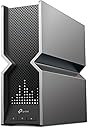
The TP-Link Archer BE800 is a cutting-edge Wi-Fi 7 tri-band router delivering up to 19 Gbps speeds with advanced features like dual 10G WAN/LAN ports, 8 high-gain antennas with Beamforming, EasyMesh compatibility, and robust security via HomeShield and WPA3. Designed for large homes and power users, it supports seamless 4K/8K streaming, AR/VR gaming, and future-proof wired connectivity, all managed easily through app and voice controls.


| ASIN | B0C4VZWTM7 |
| Antenna Location | Gaming, Home |
| Antenna Type | Internal |
| Best Sellers Rank | #83 in Computers & Accessories ( See Top 100 in Computers & Accessories ) #9 in Computer Routers |
| Brand | TP-Link |
| Built-In Media | Power Adapter, Quick Installation Guide, RJ45 Ethernet Cable, Wi-Fi 7 Router Archer BE800 |
| Color | Black/Gray |
| Compatible Devices | Gaming Console, Personal Computer, Smart Television, Smartphone, Tablet |
| Connectivity Protocol | Wi-Fi |
| Connectivity Technology | Wi-Fi |
| Control Method | App, Voice |
| Controller Type | App Control, Voice Control |
| Coverage | Large Home (4+ Bedrooms) |
| Customer Reviews | 4.0 out of 5 stars 505 Reviews |
| Data Transfer Rate | 19 gigabits_per_second |
| Frequency | 6 GHz |
| Frequency Band Class | Tri-Band |
| Global Trade Identification Number | 00840030706974 |
| Item Dimensions L x W x H | 11.87"L x 10.32"W x 3.78"H |
| Item Type Name | Router |
| Item Weight | 4.8 pounds |
| LAN Port Bandwidth | 2.5G/10 Gbps |
| Manufacturer | TP-Link |
| Maximum Upstream Data Transfer Rate | 10000 megabits_per_second |
| Mfr Part Number | Archer BE800 |
| Model Name | Archer BE800 |
| Model Number | Archer BE800 |
| Number of Antennas | 8 |
| Number of Ports | 7 |
| Operating System | RouterOS |
| Other Special Features of the Product | Access Point Mode, Guest Mode, QoS, WPS |
| RAM Memory Installed | 2 GB |
| Router Network Type | hybrid |
| Security Protocol | WPA/WPA2-Enterprise (802.1x), WPA2, WPA3 |
| Special Feature | Access Point Mode, Guest Mode, QoS, WPS |
| UPC | 840030706974 |
| Warranty Description | 2 year manufacturer |
| Wi-Fi Generation | Wi-Fi 7 |
| Wireless Communication Standard | 802.11.be, 802.11ac, 802.11ax, 802.11g, 802.11n |
| Wireless Compability | 802.11.be, 802.11ac, 802.11ax, 802.11g, 802.11n |
E**Y
Works Extremely Well..Very Happy So far. Solid Performance and with Exceptional Range and Speed. =)
UPDATE, JUNE 6, 2025: I've had this router for 3 months now with my Spectrum (Cable) Internet service. I currently have the 1000 Mbps-Down/40 Mbps Up speeds. I get consistent speeds on WiFi equal to what I subscribed to the 1 Gig service from Spectrum Internet. Very happy with the router. See attached speed test picture.. Note: Also the security subscriptions on this router are not needed. They are optional enhancements. The router will work without them. The router firmware is up to date........ ****Recommended settings for TP Link Wi-Fi routers and access points, which could potentially take care of all the negative reviews**** For the best security, performance and reliability, these are the recommended settings for any Wi-Fi routers, base stations or access points. The information in this article is primarily for network administrators and others who manage their own network. About Wi-Fi privacy and security warnings If your devices shows a privacy warning or weak-security warning about a Wi-Fi network, such as a warning about a private Wi-Fi address, that network could expose information about your device. If you administer the Wi-Fi network, we recommend you update the settings of your Wi-Fi router to meet or exceed the security standards in this article. If you don't administer the Wi-Fi network, bring these settings to the attention of the network administrator. Router settings To change your router's settings, update its firmware or change the Wi-Fi password, use the configuration web page or app provided by the router's manufacturer. For help, consult the router's documentation, its manufacturer or your network administrator. Before changing settings, back up your router's existing settings in case you need to restore them. Also make sure your router's firmware is up to date, and install the latest software updates for your devices. After changing settings, you may need to forget the network on each device that previously joined the network. The device then uses the router's new settings when rejoining the network. To help ensure your devices can connect securely and reliably to your network, apply these settings consistently to each Wi-Fi router and access point, and to each band of a dual-band, tri-band or other multiband router: Security Network name (SSID) Hidden network MAC address filtering Automatic firmware updates Radio mode Bands Channel Channel width DHCP DHCP lease time NAT WMM DNS server Security Set to WPA3 Personal for better security, or set to WPA2/WPA3 Transitional for compatibility with older devices. The security setting defines the type of authentication and encryption used by your router, and the level of privacy protection for data transmitted over its network. Whichever setting you choose, always set a strong password for joining the network. WPA3 Personal is the newest, most secure protocol currently available for Wi-Fi devices. It works with all devices that support Wi-Fi 6 (802.11ax), and some older devices. WPA2/WPA3 Transitional is a mixed mode that uses WPA3 Personal with devices that support that protocol, while allowing older devices to use WPA2 Personal (AES) instead. (**Will not work as well with legacy devices. 2.4 and 5Ghz signals fluccuate too much. Use WPA2 for non-compatible WPA3 devices.**) WPA2 Personal (AES) is appropriate when you can't use one of the more secure modes. In that case, also choose AES as the encryption or cipher type, if available. (***Most preferred encryption for legacy devices on 2.4 and 5 Ghz.***) Weak security settings to avoid on your router Don't create or join networks that use older, deprecated security protocols. They're no longer secure, they reduce network reliability and performance, and they cause your device to show a security warning: WPA/WPA2 mixed modes WPA Personal WEP, including WEP Open, WEP Shared, WEP Transitional Security Network or Dynamic WEP (WEP with 802.1X) TKIP, including any security setting with TKIP in the name Settings that turn off security, such as None, Open or Unsecured, are also strongly discouraged. Turning off security disables authentication and encryption and allows anyone to join your network, access its shared resources (including printers, computers and smart devices), use your internet connection, and monitor the websites you visit and other data that's transmitted over your network or internet connection. This is a risk even if security is turned off temporarily or for a guest network. Network name (SSID) Set to a single, unique name (case-sensitive) for all bands. The SSID (service set identifier) is the name that your network uses to advertise its presence to other devices. It's the name that nearby users see on their device's list of available Wi-Fi networks. Make sure all routers on your network use the same name for every band they support. If you give your 2.4GHz, 5GHz or 6GHz bands different names, devices may not connect reliably to your network, to all routers on your network or to all available bands of your routers. If your router is providing a Wi-Fi 6E network that isn't using the same name for all bands, Apple devices that support Wi-Fi 6E will identify the network as having limited compatibility. Turn off "Smart Connect" Disable OFDMA/MU-MIMO. Don't enable MLO Network. Most household do not have Wi-Fi 7 devices. Use a name that’s unique to your network. Don't use common names or default names such as linksys, netgear, dlink, wireless or 2wire. Otherwise, devices that join your network will be more likely to encounter other networks that have the same name, and then automatically try to connect to them. Hidden network Set to Disabled. A router can be configured to hide its network name (SSID). Your router may incorrectly use "closed" to mean hidden and "broadcast" to mean not hidden. Hiding the network name doesn't conceal the network from detection or secure it against unauthorised access. And because of how devices search for and connect to Wi-Fi networks, using a hidden network may expose information that can be used to identify you and the hidden networks you use, such as your home network. When connected to a hidden network, your device may display a privacy warning because of this privacy risk. To secure access to your network, use the appropriate security setting instead. MAC address filtering, authentication or access control Set to Disabled. When this feature is enabled, your router can be set up to allow only devices that have specified media access control (MAC) addresses to join the network. You shouldn't rely on this feature to prevent unauthorised access to your network for these reasons: It doesn't prevent network observers from monitoring or intercepting traffic on the network. MAC addresses can easily be copied, spoofed (impersonated) or changed. To help protect user privacy, some Apple devices use a different MAC address for each Wi-Fi network. To secure access to your network, use the appropriate security setting instead. Automatic firmware updates Set to Enabled. If possible, set your router to automatically install software and firmware updates when they become available. These updates can affect the security settings available to you, and they deliver other important improvements to the stability, performance and security of your router. Radio mode Set to All (preferred), or set to Wi-Fi 2 to Wi-Fi 6 or later. Radio mode settings, available separately for 2.4GHz, 5GHz and 6GHz bands, control which versions of the Wi-Fi standard that the router uses for wireless communication. Newer versions offer better performance and support more devices concurrently. It's usually best to enable every mode offered by your router, rather than a subset of those modes. All devices, including older devices, can then connect using the fastest radio mode they support. This also helps reduce interference from nearby legacy networks and devices. Bands Enable all bands supported by your router. A Wi-Fi band is like a road that data can pass down. More bands provide more data capacity and performance for your network. Channel Set to Auto. Each band of your router is divided into multiple, independent communication channels, such as lanes on a road. When channel selection is set to automatic, your router selects the best Wi-Fi channel for you. If your router doesn't support automatic channel selection, choose whichever channel performs best in your network environment. That varies depending on the Wi-Fi interference in your network environment, which can include interference from other routers and devices that are using the same channel. If you have multiple routers, configure each one to use a different channel, especially if they are close to each other. Channel width **Set to 20MHz for the 2.4GHz band** (Very important..!!). Set to Auto or all widths for the 5GHz and 6GHz bands. Channel width specifies how large of a "pipe" is available to transfer data. Wider channels are faster but more susceptible to interference and more likely to interfere with other devices. 20MHz for the 2.4GHz band helps to avoid performance and reliability issues, especially near other Wi-Fi networks and 2.4GHz devices, including Bluetooth devices. Auto or all channel widths for 5GHz and 6GHz bands ensures the best performance and compatibility with all devices. Wireless interference is less of a concern in these bands. DHCP Set to Enabled if your router is the only DHCP server on the network. Dynamic host configuration protocol (DHCP) assigns IP addresses to devices on your network. Each IP address identifies a device on the network and enables it to communicate with other devices on the network and internet. A network device needs an IP address, much like a phone needs a phone number. Your network should have only one DHCP server. If DHCP is enabled on more than one device, such as on both your cable modem and router, address conflicts may prevent some devices from connecting to the internet or using network resources. DHCP lease time Set to 8 hours for home or office networks. Set to 1 hour for hotspots or guest networks. DHCP lease time is the length of time that an IP address assigned to a device is reserved for that device. Wi-Fi routers usually have a limited number of IP addresses they can assign to devices on the network. If that number is depleted, the router can't assign IP addresses to new devices, preventing those devices from communicating with other devices on the network and internet. Reducing DHCP lease time allows the router to efficiently reclaim and reassign old IP addresses that are no longer being used. NAT Set to Enabled if your router is the only device providing NAT on the network. Network address translation (NAT) translates between addresses on the internet and addresses on your network. NAT can be understood by imagining a company's post department, where deliveries to employees at the company's street address are directed to employee offices within the building. Generally, enable NAT only on your router. If NAT is enabled on more than one device, such as on both your cable modem and router, the resulting "double NAT" may cause devices to lose access to certain resources on the network or internet. WMM Set to Enabled. WMM (Wi-Fi multimedia) prioritises network traffic to improve the performance of a variety of network applications, such as video and voice. All routers that support Wi-Fi 4 (802.11n) or later should have WMM enabled by default. Disabling WMM can affect the performance and reliability of devices on the network. DNS server Continue using the default DNS server, or specify a different primary or secondary server. To easily access websites on the internet, devices need a DNS (Domain Name System) server to translate domain names (such as apple.com) into IP addresses. By default, your router uses the DNS server of your internet service provider (ISP). If it's configured to use a different DNS server, your devices will by default use that server while connected to your router's network. If your device warns you that your network is blocking encrypted DNS traffic, you can continue using the configured DNS server, but the names of websites and other servers that your device accesses on the network are unencrypted and therefore could be monitored and recorded by other devices on the network. You can contact your ISP or other DNS provider for more information, but first try these solutions: Make sure your software is up to date and your security setting is configured as recommended. Restart your device. Restart your router. Forget the Wi-Fi network and then rejoin it.
T**N
Great Customer Service
Update as Feb. 2026: I am happy to update that BE24000 (Archer BE900) unit has been flawless for about 5 months and very satisfied. I just upped the rating to full 5 stars given my experience with this new unit. I will see how it goes during hot summer although I now have the mentioned laptop cooler pad under the router in case there is any ventilation/cooling issue. Update as of September 2025: TP Tech Support reached out to offer an upgraded model of BE24000 (Archer BE900) unit as a replacement with free RMA of the older unit. Some hiccups in getting the new unit, but at the end I received and set up the new unit (upgraded model, BE24000). Two things I now have different in the setup beside a newer model: 1) I put USB laptop cooling fans under the router (also on the modem in case) as my house gets pretty hot during summer days; 2) I am not attaching the USB Backup Drive used for file shares and Time Machine for a MacBook. It performs great on the first day. Time will tell its stability and reliability, and I will update that. Although it took a while with much interruption in my family's critical internet needs (remote work, school, etc.), I am glad that I may be able to put all those behind. For TP-Link Tech Support's effort and great courtesy, I am bumping up the star rating. Most of all, they changed my mind on the brand. Bought this back in October 2024 when it was almost close to $400 to get WiFi 7 and faster speed with multi-Gig port. Then, after about 8 months of use, all of a sudden it started dropping some wireless devices mostly 2.4G ones first. Was able to access the router management GUI through a PC ethernet connection as well as through Tether mobile app, but soon not accessible. Some 5G and 6G mobile devices still worked fine for a while. 2.4G shows up in the available network list but fails to connect. Tried to connect to 2.4G from my phone (was connected to 5G and working fine), but it also failed. At this point, it will fail to connect if I switch back to 5G WiFi on my phone. Anything that was still connected would work until it was manually disconnected and try to reconnect. At reconnect, it will fail to get IP address: DHCP failure. This is the same for wired PC if I disconnect and reconnect the ethernet, failing to get IP address from the router's DHCP. I have been troubleshooting this from trying various different router settings based on TP-Link community and working with TP-Link Tech Support, but nothing worked. For a while I thought it was some sort of thermal failure as this started on a very hot day and it repeated on hot days, but the other day it did it again when it was quite cool and even with cooling fan that I put underneath it. TP-Link Tech Support escalated this to their Engineering Team, but I got tired of this and am inclined to forget about several hundreds of dollars and hours and days of troubleshooting this piece of junk and throw it into the e-waste dump. Absolutely disappointed and frustrated. I put my old ASUS router, slower, but stable and consistent. I will not buy another TP-Link product.
M**L
Huge potential but this is a beta product
I have about 90 devices on my network, many of those are connected through Wi-Fi. My old Archer AX11000 worked great for a few years but I started having issues with it dropping the Wi-Fi every other week. After that, I tried another router brand but it wasn't able to handle the load of so many devices. I did some research and bought the Archer AXE300, which is listed to handle 200+ devices. I also bought this router, Archer BE800, to compare with and see if I could "future proof" myself more. This router was only listed to handle 100+ devices but I thought it would work fine; I was wrong. The initial setup was painless and my speed tests were pretty promising. I was getting better, more consistent, connection speeds on my 5 GHz devices (up to 400 Mbps faster in some cases). This was short lived, however, as within 30 minutes after configuring everything, the router rebooted itself. It did this 3 times in a loop and then factory reset itself! I thought maybe the firmware update messed something up so I restored to factory settings, reinstalled the latest firmware, reset settings again, and reconfigured. Just as before, within about 30 minutes, the router rebooted. This time it rebooted twice and then factory reset itself. What was odd is that everything except the LED screen and TP-Link ID settings were reset. At this point, I'm trying to figure out what's going on so I go through the now painful process of setting everything up again and try to observe what might be causing this. From what I could observe, once the router connected more than 75 Wi-Fi devices, it would start the reboot sequence. It wouldn't reset itself to factory settings every time but if I left it long enough then it would eventually. I was really hoping to keep the BE800 and return the AXE300 so that I could have the "latest" but I'm willing to wait another year to give Wi-Fi 7 time to mature. If you search online for the more expensive BE900, you'll find a thread discussing some of the issues with that router, which includes it rebooting itself, so this seems to be a common occurrence with the latest TP-Link Wi-Fi 7 routers. In the meantime, I've had the AXE300 running, along with two OneMesh devices, without any issues. If you want to buy this router then I would recommend searching the official and unofficial forums to see what potential issues you might run into and just bear in mind that you'll be beta testing this for TP-Link. Good luck!
S**I
Powerful Router with Rich features and future proof.
I'm not an expert but understanding computers and thermal degradation issues related to almost any electronic equipment is important. Setup is intuitive via the Tether App. There has been some complaint related to instability in the early stages after release but I think that trough firmware upgrades most of those are gone. My first week was a bit annoying with the router slowing down or disconnecting but once I added the AC Afinity coolings fans stability was achieved. In my opinion despite the negative feed back it's great router and if you have new gadgets that uses wi-fi 7 or 6G youll see the benefits.
R**G
It is OK, but the LED panel is a clown town accessory.
Set up and config is as easy as I've ever seen. This replaces my Orbi RBK763 with two remote nodes, and it was likewise simple, and even so the TP-Link wins in the set up race. It is fast too, now that I've moved from async Coax (Xfinity - gig down, 50m up, when was often 5-600 down, and 35 up) to synchronous fiber (Rapid Fiber -2G up, 2G down). 12 years of my career was as a EE, and my last 14 was as a data center designer/implementer, so I've had my hands in the world since early (slow) dialup, through coax, twisted pair CAT wires, and fiber plants with multi-mode and single-mode. With that background I still look at and review consumer products as though I was a first time home person attempting to set up their own router and wifi configs. Of course the folks who write the software should build their solutions with two forks, from which you can select; I have no experience with routers and wifi, to I'm an experienced user and want full set up and control. For the new user it should be a question based, with minimal or a split window view. On one side you answer simple questions, on the other side it should show the user how their question populated the set up (if they have an interest in learning more about their router, or the cause and effect). Where the router falls down a bit is the wifi signal. No one in my home has a device with a wifi 7 radio (our TV is 6, I have a Z Fold 5, my wife has an iPhone 15 Pro, our appliances are all 3 years old, the wifi on my desktop is 4 years old, and out laptops are 1-3 years old). Even so, we've noticed speed improvements while connected via wifi. But the throw (distance you get reliable wifi connectivity) is not great. While it is better than the Orbi base as a stand alone device, I am still going to have to add a couple nodes to get improved coverage. We live in a 30x71' home, with wood construction, but a metal roof. So at just over 2,100 sq ft you'd hope for whole home coverage, but no. The LED display - I'm certain this has a target demographic, but when your router is in a main room, it is both annoying and distracting. I've not dug into the setting deep enough to see if there is a disabled setting, but there is a button on the front to disable them. This works until the router processes an update, and is reset to on after any reboot. A little background. I have a penchant to use Netgear routers/modems (pick your preferred term) for probably 10-12 years, so for me to move to TP-Link was a big step. Kind of like starting to eat a food you've not had a taste for your whole life. On the other hand, when I look at my stack of unmanaged switches all of them are TP-Link. They've been around for a very long time and make reliable products. While I'm not yet fully satisfied with the product, it is doing it's job talking to the world, and only a little weak on the throw of wifi. I'm hoping to attach my Orbi mesh nodes, since this TP-Link says it is mesh friendly. I take that to mean it will use other mesh products without a problem?
G**S
Performance improved after updates and fast.
Updates I changed all my cat 7/8 cables and also call my service provider to check the landline outside. It turned out that the land line was bad so it is not Tp-link devices after all. Also there is also issue with the coaxial cable so it was replaced too. After I updated the firmware everything runs smoothly. I guess the combinations of different issues is making it so hard to diagnose. Worst of all is the main line outside the house which was bad. The only downside is Tp-link vpn feature is not not good compare to some other routers inluding mini and travel routers I purchased before. That is one thing that need to add. Old review Not sure what is going on but it seems like Tp-link routers are getting worst. I have the old tp-link 1800 and later Deco 60x3 (my house). I also bought Deco 50 (on another parent's house) The first old tp-link has a limited bandwidth and needs constant reset once the ram is full due to activity and the Deco 60 has a constant disconnect which is bad for vpn. At first my pfsense is running good as a main router with Deco 60 as a secondary. Not sure what is going on suddenly both routers when acting as main routers are having issues. The pfsense I believe it is due to some addon security which I need to check again. The Deco 60 (3 devices) constant connection drop is bad for my vpn which I am using for work. So, I am trying this BE 800 bust not even 10 minutes later I am having even a worst issue. It couldn't be my cable modem because the Internet is on and this Be800 is not getting the dynamic ip of all sudden. I have to reboot both devices several times to get my connection back. The plus side is it has extra ports in contrast to the Mesh routers Deco 60 but my connection couldn't go beyond 700 Mbps which is original 1 gbps before using this new router. For Deco 50 I don't have any issue with it. I haven't buy a 10gbps switch but I do have server with multiple 10 gbps ports. I was thinking create a virtual pfsense server from it. I replaced all my cables with new cat 8 and few cat 7. Cat 8 is very cheap and on sale, so why no but it doesn't resolve the issue. I will keep it for a week and if the connection is dropping still, I will ask for a replacement. If that doesn't work I will simply refund it. cable modem -> 1st map -> Be800 ->direct connection desktops, laptops and phones -> Slow and Internet drop. When the first map failed or having issue, this second one is obviously having the same issue. 2nd Map -> Be800 -> Deco 60 -> Tp-ink 1800 -> devices -> Be800 -> pfsense -> devices -> Be800 -> switch -> tplink gb switch switch -> router switch -> desktops, laptops
R**R
Superb hardware, unreliable WiFi 7 signal
The big Pros: Putting the WiFi 7 aside, this router is amazing if you need all the ethernet ports it has. It can be the best future proof bang for the buck at the moment and is one of the few devices certified by the WiFi 7 Alliance, which is great. Meanwhile, Asus and Netgear routers aren't certified yet (as of today, june 2024). So if you 're looking for a mix of 2.5G and 10G ethernets this is the hardware and finding so many 2.5 and 10G ports in a single device is too expensive. The big Cons: HOWEVER (big caps), the WiFi 7 signal is very very unreliable. TP-Link implementation is still lacking and much of the Tether app is badly programmed. I found some gross bugs that should never be released to end users, such as both the SSID and the Password fields showing the password (yep! the SSID Name reveals the password), uncensored, and even if you re-insert the correct SSID name, save and reboot, the Tether app will still show the wrong values and behave as the password is being used as the SSID Name during the handshake, which leads to connection errors. A lame and inadmissible programming error, and it is not the only issue of this kind. I managed to work around this bug by accessing the router page from my PC through ethernet. Many configurations that makes up the wifi 7 signal can't be activated at the same time. There are clear problems with conflicting SSIDs with the same name or different passwords. Once you activate MLO, all hell goes loose on the WiFi 6 and MLO signals. The only channel that is consistently reliable is the 2.4G band, which is inadmissible as well. One does not sell a kidney to have a WiFi 7 router that only works on 2.4G bandwidth. Firmware updates are scarce and up to now not a single one fixed the WiFi 7 reliability issue, and also seem to introduce more small stupid UI bugs, like their app poping repeated connection error messages then connecting anyway with no problem at all. Conclusion: If WiFi 7 is something you need for important that demands it, move away from every brand and wait 2-3 months. None of them seem to have hit the spot on it yet, all of them are having the same signal instability (WiFi drops every 5sec incessantly until the router SO enter in a loop of crash and reboot) only a handful of the chinese manufacturers are certified yet. So all manufaturers that speared ahead of the competition are basically testing unofficial stuff in hopes of milking as many wallets as possible from the early adopters.
R**I
Very happy with my network now.
This machine is amazing! Best things about it IMHO.... Wifi 7/802.11be (whichever you wanna call it) with separate regular LAN/guest/IoT networks, the ability to setup individual 2.4/5/6 GHz bands or a blend of the 3, a built in Media Server function for my 8TB NAS with all my movies/shows/music stored on it, state of the art encryption, rock solid stability and future-proof connections in the back. Gimmicky display on the front, BUT it did turn out to be helpful when it had an issue. It was displaying a big EXCLAMATION MARK on the front one day after I noticed there was no internet on PS4. Turned out there was a firmware update that had been downloaded and needed to be manually installed. Beauty was that initially my MediaServer and NAS function weren't working right and I was about to send it back for another when the update was pushed out and now everything works flawless. I was going to leave a crappy review to boot, but after the update 2 days ago, I honestly can't complain. Doesn't feel cheap, and for just under $300, in Nov. 2025 I feel like I got a smokin' deal. I am not a robot or AI. Not an IT know-it-all either, but know enuff to appreciate most of what this machine can do. At the end of the day, that's all that matters.
B**O
Excelente
Es una excelente marca para router para transmisión a altísima velocidad, es el mejor hoy en el mercado en Enero del 2024.
A**I
اقوي جهاز راوتر جربته الي الان
اقوي جهاز راوتر جربته الي الان بدون مشاكل
S**N
Speed Monster - Highly Recommended
Were using standard Du's Linksys Modem and reaching 600 mbps, now with TP, i can get 950 mbps. Huge speed gain for me However interface is a bit basic, for flagship model i woud expect more functionality
M**I
قوة الاشارة
من افضل الراوترات التي عرفت فقط السعر شوي غالي بس يستاهل وخاصة أهل الاعاب إلكترونية سريع جداً وممتع لمشاهدي الأفلام
B**R
Amazing speed and performance.
One of the best wifi 7 routers in the market hands down. Amazing performance, fast speed and strong connection.
Trustpilot
2 weeks ago
1 month ago