Desertcart purchases this item on your behalf and handles shipping, customs, and support to Seychelles.
🎨 Elevate Your Artistry with Every Stroke — Don’t Just Create, Captivate!
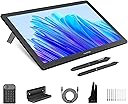
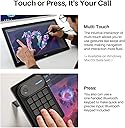
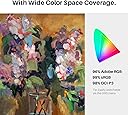
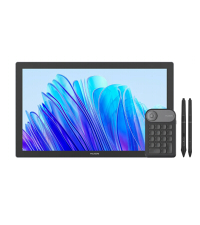
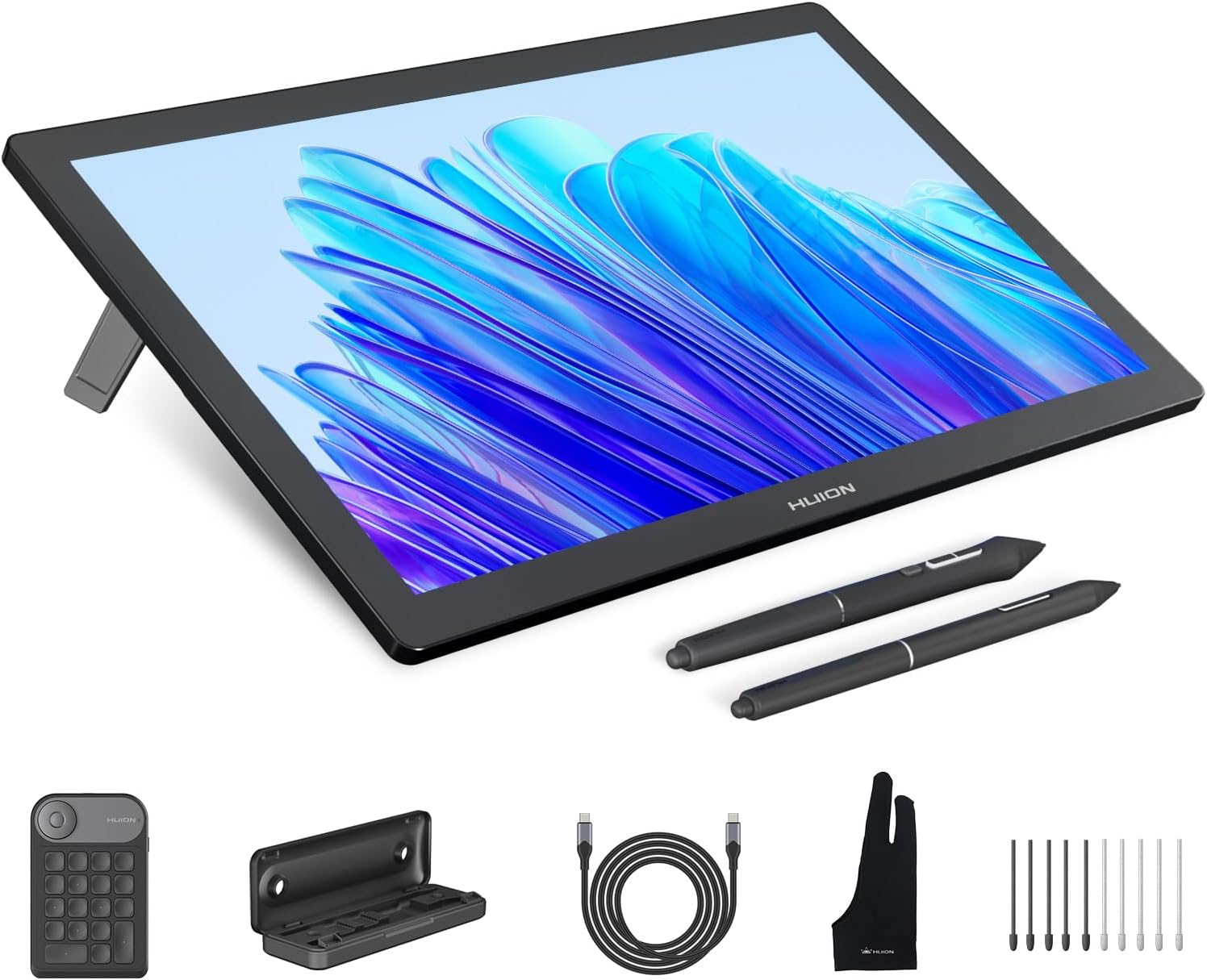
The HUION KAMVAS Pro 19 is a professional 18.4-inch 4K UHD drawing tablet featuring a fully laminated anti-glare glass screen that mimics paper texture. It delivers exceptional color accuracy with 99% sRGB and 96% Adobe RGB gamuts, powered by dual PW600 styluses with 16,384 pressure sensitivity and tilt support. Designed for seamless multi-touch interaction on Windows and equipped with a Bluetooth programmable keypad, it offers versatile connectivity and fast charging. Ideal for digital artists, designers, and animators seeking precision, comfort, and portability in one robust device.


| ASIN | B0CPF3KWS2 |
| Active Surface Area | 16.1 x 9.06 inch |
| Additional Features | 16384 Levels of Pen Pressure, 60° Tilt Support, Anti-Glare Canvas Glass 2.0, Full Lamination, Multi-Touch Screen, Programmable Press Key |
| Best Sellers Rank | #109 in Computer Graphics Tablets |
| Brand | HUION |
| Built-In Media | 3-in-2 Cable, Full-featured USB-C to USB-C cable, USB-C to USB-C Power cable,PD Power Adapter, Bluetooth Express Key Keypad, Kamvas Pro 19 4K Drawing Monitor, PW600/PW600S/Pen Case/Felt Nib*5/Normal Nib*5, Palm Rejection Glove, Cleaning Cloth, Quick Start Guide |
| Color | Dark Grey |
| Compatible Devices | Desktop, Laptop, Smartphone, Tablet |
| Connectivity Technology | 3-in-2 cable, USB-C to USB-C cable |
| Customer Reviews | 4.4 out of 5 stars 1,930 Reviews |
| Display Type | LCD |
| Item Dimensions L x W | 17.67"L x 10.72"W |
| Item Weight | 4 kg |
| Manufacturer | ShenZhen Huion Animation Technology Co., LTD |
| Model Name | Kamvas Pro 19 |
| Model Number | GT1902 |
| Native Resolution | 3840x2160 |
| Number of Items | 1 |
| Operating System | Android devices that support USB3.1 GEN1 and DP1.2, Linux OS(Ubuntu 20.04 LTS), Mac OS 10.12 or later, Windows 10 or later Operating System Android devices that support USB3.1 GEN1 and DP1.2, Linux OS(Ubuntu 20.04 LTS), Mac OS 10.12 or later, Windows 10 or later See more |
| Pressure Sensitivity | 16384 levels |
| Screen Size | 18.4 inches |
| Special Feature | 16384 Levels of Pen Pressure, 60° Tilt Support, Anti-Glare Canvas Glass 2.0, Full Lamination, Multi-Touch Screen, Programmable Press Key Special Feature 16384 Levels of Pen Pressure, 60° Tilt Support, Anti-Glare Canvas Glass 2.0, Full Lamination, Multi-Touch Screen, Programmable Press Key See more |
| Specific Uses For Product | 3D Modelling, Designing, Painting, Drawing, Animation, Writing, E-Signature, Editing, Online Education, Remote Work, Teaching |
| Target Audience | 3D Modeler, Game animator, Photographer, Professional Designer, digital artist |
| Warranty Description | 1 year warranty |
C**N
Revisiting the Huion GT-191
This review reflects years of use, speculation, and finally, testing of a variety of products that led me to this purchase decision. The Decision: After hearing about the Wacom Cintiq in 2013, and testing various models of drawing tablets and screens, I knew that one thing meant the most to me: Does it work? Does the device support what do with my style of art? Does the device make sense for me to purchase? In other words, will my experience with the Intous Pro that I have used for so long transfer flawlessly to this new type of device? Does it fit my budget? Does me using this equipment for my everyday work justify the cost of the device, or do what I have already (Intous Pro in this case) adequate to do my work as a digital painter? The Crit of the Intous Pro 16 vs Huion GT-191: I was pleasantly surprised to see alternatives to the much critically acclaimed Wacom Cintiq years down the line in the middle of my research. But I was "comfortable" with what I had, which led me to buying Cintiq Pro 15.6" (or whatever size it is), to which I was very underwhelmed when I saw the low contrast, and oddly enough, the same feel as using the Intous Pro. I guess I was really expecting that grain texture of the surface of the screen, But those things didn't dampen my taste in the device, it was the price. Even for a refurbished model I could not justify the cost for an experience I've had once before for a whooping $1303.45. I returned it. (There was also a defect in the device that left one of the leds to shine brighter than the rest of the screen) It wasn't long, but for a concentrated period of time I overhauled on my research into getting not just Huion but Ugee, XP-Pen, and many others and weighed out the benefits of each device. What was most important to me? What will I do if this purchase doesn't pan out? What were other people saying? Those questions put me over the threshold. I made the purchase once a saw a repeat review for the same device the Huion GT-221 which I also considered purchasing. With the bad taste left in my mouth by a Wacom fanboy, I decided on this device because it had been out the longest. and therefore much more feedback and support. Whats the verdict? Contrast. Even with adjustments in Nvidia Display Adapter, got the colors looking good, but can't quite get those high and low darks you would expect from a normal monitor. Calibration. A pain at first, but once you determine hand placement for each point you calibrate your pen to where hand lays naturally when you draw, you should be golden. The Build. Freaking Awesome, no complaints. I'm a 360 lb man drawing on this surface and it does not budge. HOWEVER: (Fixed) The software is EXTREMELY finicky, often times overwriting my pen pressure settings which forces me to unfortunately reinstall the Huion software. After having the device for less than a week and having to do this twice is making it quite tempting to go back to my Intous Pro. JUST SAYING! I will be contacting Huion over this and I will update this review. UPDATE 7/3/18: Three days ago I tried using Adobe Illustrator, and to my horror the pressure sensitivity doesn't work. I've been hearing that there is a temporary fix using an Wacom driver, but I've yet to find out which one, and if its true or not. I've been trying to make contact with Huion, but to no avail. Getting in contact with them is almost like playing a game of cat and mouse unfortunately, but I will give them the benefit of the doubt, I have been contacting them in the wee hours of the night. Unfortunately, this product is moving from 4/5 to 3/5 stars because of it's lack of support over this specific issue that other users are also having. This is an investment, and a company that sells these kinds of products, even as a cheap alternative, need to understand that the user base is paying attention when they don't respond to these kinds of issues with their investment. UPDATE 7/4/18: I received a response this morning from Huion, but I was again disappointed by their lack of support for their own product. I was told to run in "administrator mode" and "turn windows ink" off in the pen settings, assign "switch brush" to one of my pen buttons, and update to a new driver, which I already had, which they would've known if they were paying attention to my messages. UPDATE 7/5/18: They just got back to me this morning with an updated driver that wasn't available on their website, and that seemed to do the trick. 4/5 stars again. Conclusion: (Updated 7/17/18) My overall user experience/customer service experience with this device has been nothing short of amazing. Aside from a few small hiccups with the driver not working properly with Adobe Illustrator CC, and it being bit of a chore to calibrate the screen with the new driver, I cannot recommend this device more for the artist that wants to break into the drawing monitor scene. I will be giving this a 5/5, because in the end, Huion did reach out to me EVERYTIME I had a problem, and were proactive to solving my issues correctly. My one comment would be for the new 14.5.0 driver to come up with some sort of guide as to get the best results possible without having to reverse engineer the calibration process (see attached link). ~Christopher Ahearn 11/22/2019 After a long time with this machine, I am underwhelmed by the whole drawing tablet experience. I've since now switched to my Intous Pro that I got back in 2013, and I am glad to say I am much happier with the free desk space. It wasn't a bad experience. It was something that left to be desired with all the re-calibrating until I got that settings that felt just right. Overall it didn't feel natural to me in a confined space like I had, and the screen size and resolution also left something to be desired. My workflow changed, it worked, and then some personal stuff happened to me throughout the year and it felt the setting up to paint became a drudgery instead of an experience I was hoping to get out of this device. It's good for it's purpose, but honestly painting for me was never about the tool, but whatever I could create out of my surroundings. I still support Huion because Wacom is just too damn expensive for an experience that concentrated more about the technology than what you could get out of it. In other words, the experience a pen tablet could be to someone with different tastes and needs could lead to an epiphany of creative juices to the same man or woman can get out of an pencil an paper. I really wanted this to work out. But on a side note, I tried the Apple Pencil and Ipad Pro and that to me felt like a better experience.
M**G
I didn't think I'd like this but I'm really happy with it.
Color me impressed. For what many call a ‘clone’ this tablet really is impressing me. It has everything you need to get it started and some extras the competition should be including. You get TWO pens, and the battery lasts up to a week before it needs to be recharged, a pen-stand for that has 8 replacement nibs hidden away. You get a metal stand included, this sounds like “well duh you do” but sadly the competition isn’t including one and they want you to pay $100 for a plastic wonky one, also you get a tablet glove! That thing that makes your hand glide on tablets vs sticking to them. I honestly got this because I got teased by a lot of my friends and fellow comic artists for working on such a small tablet, my Surface Pro 4. So I had some store credit and decided to try this out while it was on sale. I was really nervous about it as I’m always hearing “There’s a trade off with the clone tablets”. Sure, maybe if you’re expecting a luxury tablet that’s got a metal chassis or whatever but this tablet has a glass screen, a ton of extras and feels sturdy. I worked on a piece for a while, trying to get comfortable with it and it’s impressive to say the least. I don’t think the parallax (distance between the pen & screen) is bad, way better than my old Wacom 12WX…as is the color accuracy. I’ve worked on the Surface Pro 4 for a while which has very minimal parallax and I honestly didn’t have much trouble on here with the Huion tablet. Also there’s no hot spot on the face of the tablet, you know that spot where your hand would stick to or just start to get sweaty, none of that here. The pressure range of 8k is really good and I noticed it was higher than my Surface Pro 4’s 1k pressure range. That said I’m not so blown away that I feel the SP4’s pen is bad or unusable but there’s a difference. You have a solid range of control that’s to be certain but I think past a certain number you’re less and less likely to notice. Must be said, some may be turned away by the plastic pen on the glass screen (there is a textured screen protector but we’ll get to that and why it’s bad with my tips) and I’m fairly spoiled with my Surface’s pen tips giving me a range of 4 different feels as this only comes with 1 type of 8 nibs, smooth and plastic. There are speakers in the unit, I haven’t tested them but I honestly haven’t seen a good set of speakers in a monitor/TV since the ol’ CRT days where they could fit larger drivers in there. I can’t give my 2 cents on that since I haven’t tried them but, this is an artist tablet and I’m focusing on that. I tested it with Clip Studio Paint EX and I’m including a pic of the workspace & the piece I finished so you can suss out how it can work. I did one doodle before it and then straight to this from being used to my Surface Pro 4 so I didn’t have much of a learning curve to get on with this. I had no compatibility issues and had it working with the software instantly. Messed a bit with Photoshop and the pressure seems to work straight away. I don’t use photoshop much for the art end so I can’t say fully how well it works but when I made some brush strokes they worked fine enough. As far as negatives, well the monitor is large and a bit heavier than you’d expect with a lot of modern ones really slimming them down. This monitor is a fat one, and the stand really makes the footprint of this device pretty big on your desk. This with the stand isn’t going to strain your muscles to move it about but I don’t think you’ll have this on your lap while you’re sat back in the chair either. The pen I’ve heard feels cheap, I’d say it feels very light and there’s no rubber like on the wacom ones so that might be where that feeling comes from. The screen protector that’s supposed to add a texture is worthless and really isn’t worth having on…When you use it, a rainbow effect appears as you’re wearing into it and it makes the tablet unusable. You simply can’t see what is going on under it, so stick with the glass, your plastic pen won’t hurt it but make sure you’re not wearing a watch or whatever. The other thing is there’s no eraser on the pen’s butt, there’s two buttons which are programmable but it’s something you’ll either have to learn to live with or adapt if you’re gonna grab this. Overall, if you’re looking for a tablet where you can work right on screen this is an excellent one to have pro or hobbyist alike. If you’re just starting out it has everything you need, especially for the cost. I’ve worked on Wacom products for years and the Surface Pro 2 and 4 for ages as well and this tablet impressed me. Thing to keep in mind, this is not a luxury tablet, it’s not ultra thin and light and it’s not made of an aluminum chassis, but it’s well built and I feel is worth the asking price. Especially considering I’ve spent far more on Wacom with their 12WX and was underwhelmed. Here’s some tips for setting the thing up since the youtube reviewers I’ve watched missed some things: -You need to calibrate the colors out of the box. Once you do the colors are really nice and the 1080P works nicely on this size monitor. -I would say remove the textured screen protector. Because the screen is glass your not going to do much harm to it with a plastic nib. I have a Surface Pro 4 which I’ve worked on for 2 years and without a screen protector. After all that time there’s no damage I can see on it. The screen protector on this thing has a texture to it to make it more like working on paper. The problem is it’s useless and ruins the experience, The colors are ruined with it because of the matte texture and as you use it, a rainbow effect appears as you use it. It’s really bad and isn’t something I think is worth the texture effect. I was genuinely struggling seeing my linework on the monitor till I removed it and it’s vastly better. -What the youtubers got wrong: They say the stand gets stuck on the cables, this really caught me as odd as the stand has a massive hole in it for you to put the cables through so it makes it impossible to put the stand on the cables in any way. -Be sure to NOT install the drivers off the CD, you’d be wasting your time. Go to the huion website and download the fully up to date drivers there. -There are no express keys, honestly I’m so used to a keyboard that this didn’t even register till I saw others complaining about it. -No touch interaction, this IS what got me since I’ve been working on a Surface Pro 4 using 2 fingers to rotate and zoom. That’s simply not here. Which is a shame but, something I’m getting used to again. -Wash the glass screen, there’s some form of residue that makes the pen kinda drag against it, but after a microfiber cloth+water wash over the glass it’s super smooth and nice. -Make sure you uninstall all other tablet drivers before using this. My tablet history: (Unknown name brand), Wacom Graphire 2 & 3, Intous 2, Wacom 12WX, Surface Pro 2 w/ Wacom Bamboo Feel, Surface Pro 4, Huion GT-191 And hey, if you have any questions or want me to clarify something feel free to leave a comment and ask and I’ll answer as best I can. Update: After about 2 weeks or so of not charging the pen and tons and tons of use it finally needed charging. Didn't expect that! -Mike G
R**R
which I love. However
I've been a digital artist for a while, and am also a long-time user of Wacom pen tablets, which I love. However, I could never afford their pen displays, as much as I wanted one. So after much waffling back and forth and even more research, I finally ordered this pen display from Huion. So far it's everything I hoped it would be! It's very sensitive, and fast--I can actually sketch on it, which I couldn't do with my old pen tablet (the stylus couldn't keep up with quick hand movements). The build quality seems very solid, and I'm hoping it will last for a long time. IHere are my overall thoughts, if there's anyone out there who's nervous about ordering from Huion like I was: The Good: Huion packaged the display VERY well (which is more than I can say for Amazon's outer box)--two layers of boxing, with two additional thin sheets of chipboard bracing the flat sides of the innermost box for even more protection. Everything was well-nested and easy to find; they even taped the little baggie of screws to the inside lid of the 'accessory' box so it couldn't get lost, which I thought was really smart. And included a screwdriver, even. Which I didn't need, but hey, free tools. No dead pixels or other defects in the screen--slightly less sharp than my LG monitor, but otherwise beautiful, and handled full HD resolution without any issues. Huion was very generous with the freebies--I received a second stylus, a cleaning cloth, and a drawing glove (to keep the side of your hand from smearing across your screen) gratis with the display. It was a very nice touch, and I've already used the drawing glove. I heeded the warnings from other reviewers and didn't even try to install the drivers off the CD--just went straight to the website. So far no problems! The display is very pressure sensitive, as advertised. The stylus actually seems to fit better in my hand than the old Intuos one, and it draws beautifully. The Bad: The amount of cords I have to plug in for this is a bit ridiculous. I have three cords for the display (USB, HDMI, and power), plus yet another USB cord to charge the stylus. I know it's the nature of the beast, but I pretty much have cords snaking everywhere at this point--they also make it impossible to lie the monitor down flat on the desk. Definitely *not* portable. Not that I was expecting it to be, but it would have been nice. The weight and all the extra cordage make that fairly impractical, though. Color calibration was also way off out of the box--everything had a purple cast to it, and it looked fairly horrible. Huion's display software didn't have anything to address this, and the built in monitor software wasn't much better--it has the standard contrast/brightness/presets, and not much else. I had invested in a Colormunki however, which made color calibration a pretty painless process. Otherwise I likely still would have been fussing with the color balance. As it was, I set up Colormunki, let it run for 5 minutes, then applied the new profile. Overall, I definitely recommend this pen display to any artist on a budget.
M**O
Affordable and good quality overall
I've wanted a drawing tablet that I could directly draw on the screen for a long time but I could only afford a regular graphics tablet that I bought from Wacom. I'm so glad I found out about this one from Huion so I could save money and not have to spend $600 or more for a Wacom one. I'm a traditional artist and tried digital painting when I purchased my Wacom graphics tablet and I wasn't that great. I practiced often and I still wasn't satisfied with my work so I stopped. However, after getting the Huion drawing tablet, I love drawing digitally. I think my problem with the Wacom I had is I couldn't get the pressure sensitivity to work properly or perhaps I'm just better at drawing directly on the screen. The Huion drawing tablet came with a screen protector but I had a hard time getting the air bubbles out so I took it off (I ordered one from a different brand). I actually don't mind drawing on the glass but I don't want to scratch it up which is why I ordered another. For my Mac, I only needed to use the HDMI cable and USB cord connected for the screen to work. It also came with a KVM cord, I believe it's called but didn't need that and it wouldn't have fit my laptop's ports anyway. The monitor is a cooler color than my laptop screen, but I don't notice the difference when I complete my artwork and compare it on both screens (I might have to just play with the settings more). I only notice the color difference with the color white. I had issues with the pressure sensitivity the first two days of use, so I uninstalled the driver from the Huion website (I did not use the disk because my Macbook Pro does not have a CD-ROM drive) and reinstalled it and now the pressure sensitivity works perfectly which I heard this is a common issue. This issue is the only reason I gave a 4-star review, rather than 5 stars. I also had to recalibrate the screen to fix the cursor offset issue I had when I reinstalled the driver, and there wasn't any noticeable offset after calibrating it. I'm very happy with my drawing tablet and still can't get over the price I paid when Wacom charges nearly double what I paid for this one. My only con is all the wires, which include the power plug that goes into the outlet for the Huion screen, the HDMI cord, and USB cord. I wish it was wireless, but it's not that big of a problem. My iMac does not have a USB port (uses a lightning cord) so if I want to use it, I have to connect it to my Macbook (which is connected to the Huion tablet) with the lightning cord and rearrange the screens. It's not that big of a deal, but usually, I just hook up the Huion with my laptop. As far as the Huion drawing tablet not having hotkeys, it would have been nice to have but I just use my wireless keyboard. I believe the newer Huion drawing tablets have hotkeys. The box it comes in is huge but it's not that heavy. This is my first Huion product and I'm very satisfied.
D**)
Reliable, Sturdy, Great alternative
For an alternative to Expensive Drawing tablets, This was one of the best purchases I made. I've been wanting a Drawing tablet with a screen for so long now. I had a Wacom Bamboo and was using that for the longest time to do digital drawings. It would take me hours to get used to the hand eye coordination needed to do anything. This would lead me to leaving my tablet plugged into my computer and not drawing anything. After a while it became harder and harder to go back to digital drawings when I was having a much better time doing physical work. I was gonna change that by getting a Tablet with a Screen and was Initially gonna go for a WACOM Cintiq DTK1300, cause I thought that was the standard I should get that. But at $800 it was gonna be a long time before I saved up enough to get that. My friend told me there was a review on Youtube for the Huion GT191 and once I watched that I was convinced and said I would give it a shot. I AM NOT DISAPPOINTED $300 Less than a 13 inch tablet. this one is 19 inches and its the perfect size of a computer monitor. That disconnect I had with digitally drawing something is gone. I bought this a month ago and its taken me hours less to Line, Color, Shade, and Shine a drawing. I can complete a drawing in a 1/4 of the time it took me to draw something on my wacom. (this is more to encourage any artists that are wanting to go for a screen tablet and they feel like they are losing touch with digital drawings to go for it.) This tablet feels fluid, it feels natural to draw the way I want to. The install is a bit finicky but now that I look back on it, it wasn't so bad. (Just follow the instructions as best you can and if all else fails contact their customer service they have been very helpful.) The pen has to be charged up, which doesn't take long, and the charge holds For...... I dunno how long it hasn't gone out yet.(Mind you I've completed a couple drawings here and there.) (Plus this comes a second pen.) Screen is the perfect size in my opinion, no delayed responses. The program that comes with it to configure the tablet and pen is amazingly simple and effective. The whole thing seems very sturdy and tough (Please don't test by throwing it at something.) I was worried that weight was gonna be a bother to the screen but it has been resilient (Arm weight). So far the only quick select buttons, are on the pen stylus, two buttons to configure how you want. (Though I have never configured quick select buttons to be honest.) The stylus pen is awesome, the pressure and sensitivity feels like how much pressure you would use on an actual pen, which can be configured to your preferences of pressure sensitivity. This has been one of the best purchases I have made, I would have still been waiting to get a Wacom, This is a great Alternative it has all I need no extra features that seem useless or unneeded. I've used Clip Studio Paint and Paint tool Sai and they have both worked perfectly. Also remember when installing, UNINSTALL YOUR OTHER DRAWING TABLET DRIVERS! I can't stress that enough. I love this Tablet and I'm glad that there are reliable alternatives, I think I might stick with Huion for some time now.
O**E
Yes, it's a great tablet
I've only had it for a couple of weeks but so far I'm a very happy camper. While I had originally planned to use it strictly as a drawing tablet, after a few days it became my primary display. It's like I have a 19" laptop on my desk for everyday tasks that can also be tilted down for drawing. Graphics pros will probably want to adjust the colors, contrast, et al to their liking, but to a retiree's eyes it actually looked pretty good with the factory presets. Ditto for the display's parallax -- I don't consider it an issue but I suppose an art pro with better eyes or more experience might disagree. I will however echo the many voices advising you ditch the screen protector. As to the physical configuration, I had no problems drawing with the stand set on the lowest notch (24 degree slope) although I've found I'm personally more comfortable drawing on a steeper incline. My guess is that those users reporting problems getting the angle lower than 45 degrees might be using the thickish HDMI cable Huion includes -- I needed a 10-foot HDMI cable for my desk setup and I've had no issues using a thinner HDMI cable: PERLESMITH 2-Pack 10 Feet Ultra-Slim HDMI Cables 3D & 4K Rated with Ethernet - Bonus a Right Angle Adapter and 3 PCS Cable Tie Driving the display with a GTX-1080 Ti video card via that thin HDMI cable I haven't seen ghosting or other issues. No problems in viewing 1080p movies or in playing games. Admittedly I haven't stress tested the tablet with recent top-end games, but if you're a serious gamer you're probably not looking at a 1080p device as your next display purchase anyway. I was a little concerned by reported software compatibility questions mentioned on the Reddit Krita forum, but I've had no problems. Given that I'm using the month-old June 2018 V2 driver for Windows from Huion's website, it's quite possible the previously noted problems were fixed in the latest driver. So far my noodling (technical term) with SketchBook and Krita has revealed no issues. I did have to crank up the sensitivity a couple of steps in the Huion configuration app to make brushes work to my liking, however. Final verdict: this is a great value at the current price and a bargain if you catch it on Cyber Monday or a similar deal. I'm happy with it as a drawing tablet and was pleasantly surprised by its performance for other computer uses. Again, I'll grant that art/graphics professionals might object to some fine points I'm not catching, but as an amateur artist I absolutely love it. Enough so that it replaced my old 22" display on the desktop.
Z**L
Bad hardware, bad drivers.
The tablet is, functionally, great. It has some driver issues, though. I also can't conceive of how they're unable to figure out how battery-less styli work, since Wacom has been doing it for decades. Some software requires you to manually run the driver software as Administrator in order to work properly, or the stylus just stops working while the program is active. Some major software is also not supported, which is exacerbated by the fact that they do not seem to have a list of supported software. I found out after getting it, for example, that it does not work with Maya. It's functional, but works like an ordinary mouse; you have no pressure sensitivity when painting weights or using sculpt tools. I had to contact support directly to find out it was not officially supported by them. Luckily, it does work with everything else I need (ZBrush, Substance Painter, and all 2D sketch software I've tried). Another minor concern is that the driver has no proper update feature; you have to occasionally go to the site, compare the newest driver version against the one you have to see if it's newer, then download and install it as if you were doing it for the first time. Now like I said though, the hardware is great. It's big, cheap, good resolution, good colors, good sensitivity, negligible lag and parallax, doesn't heat up. It doesn't have express keys, but I rarely made good use of those anyway with 3D work, since the sheer number of keys needed forces you to make heavy use of the keyboard regardless. It doesn't have an eraser on the back, which is a bit annoying. The things you can bind to the stylus' buttons are a bit limited as well. For example, you can't choose if you need to both press and touch the screen to activate it like a Wacom. It always activates immediately, while still hovering. You can basically only bind mouse or keyboard keys to them, with no fancy controls beyond that. Despite the problems, I would still recommend it to almost anyone over Wacom due to the sheer unreasonable cost of a Cintiq. If you're filthy rich enough not to care about that, then a Cintiq is definitely superior. -Update- After using it for a while, I can confirm what others have said about the colors being bad. The actual color balance seems okay on mine, but no matter what settings I use the contrast is far too low. The glare is also so bad I can't even use it with a light on. This only gets vastly worse with the protective cover removed. Without it the screen is practically a mirror. I've also found that it actually does have a heat issue like old Cintiq models if you use it for too long (around 6+ hours). It can get bad enough that I have to shut it down and let it cool. This doesn't speak well to the longevity of the hardware. The drivers are even worse than I originally thought as well, because they provide literally no support for any 3D software. ZBrush works fine for me purely by chance, but virtually everything else I've tried has bugs, and support basically told me they don't care about those software.
A**R
Great Product and I am glad that I bought it
I watched tons of review videos before I bought this product. The main purpose was trying to figure out why this one is way cheaper than Wacom products. Back to my Art school period, I used Wacom pen tablet a lot, and now I work with one Intuos Pro at my work place everyday. So I was intent to buy a Cintiq but this price made me hesitated. After seeing many artists are happy with GT-191 and it seems work very well, I made my decision. I've been using it for one week. So far I can say I made a very smart decision. Everything works perfect to me of this product. 1. Installation was easy on my Macbook Pro 2017. No driver problems since I uninstalled the Wacom driver first and downloaded the Huion driver from Huion's website instead of use the CD.(I have no CD rom anyway.) 2. I didn't do color adjustment, color seems pretty right to me. Can't see any weird part. 3. I was afraid of the pen is low quality and feel cheap because I'm so get used to Wacom pen. No, they are not. I use Wacom at work and use Huion at home, two different pens haven't give me uncomfortable feeling. 7 days and 3 hours usage per day, I still haven't recharge it yet. I'm fine with the pen has no eraser, I don't use it anyway. 4. I'm also very comfortable with this product has no expresskeys, I use keyboard all the time, never use the expresskeys on my Wacom products. 5. The parallax is fine. Hardly feel it when I drawing. 6. The only thing that really bother me is, right, the texture screen protector. I really like the texture surface, makes me feel like drawing on a piece of paper. But, it does have some kind of rainbow effect, makes me difficult to see what's behind the protector. I only did some line drawing practices this week, and when I focus on the drawing, I can ignore the negative effect in some ways. But I think when I'm ready to do some color works, it would gives me some troubles. I might need to give up the paper texture feeling and work on the glass. After all, the product is still very worthy. I'm glad I bought it.
D**I
Honestly really good
I bought it a month ago. The pen lag is very minimal, not noticeable at all, the colours are more vibrant on the display, the buttons took a while to get used to but they all work perfectly without any issues. The only thing I got confused by was installing the tablet, as this is my first time using a display drawing tablet. I chose to buy this after EXTENSIVE research, and I'm so so happy with what I received. Side note: it also works decently well as a second monitor.
M**R
Awesome drawing tablet for the price. Worth double the cost
I see others complaining about lag etc... honestly you can't expect $1500 performance from $250 price tag used or $600 new product. Depending on the brush size and the size of the canvas you will see some lag when using very small brushes while also moving the pen slowly accross the screen. It makes some getting used to. There is a learning curve. If you want performance that mimics using a real brush then you are going to have to pay 4 times as much for the display and also pay for a gaming computer. This display and pen coupled with the huion keydial keypad for use with CAD softwares like FreeCAD or AutoCAD/SolidWorks is more than adequate and comparable to much more expensive alternatives. The most time consuming process is setting the keypad short cuts for each h individual program and also configuring the keys on the edge of the screen that will best suit your workflow. Even not set up properly for my needs yet and I can already see the benefit of buying both items for my 3d modeling. They will increase my efficiency and speed at getting things done to more than justify the expense. If you buy budget equipment you have to accept that there will be a compromise with performance.
ع**ل
جودة رائعه
تجربتي بعد تجربة اجهزة الواكم وسأقرن بينه وبين الواكم تحصل على مسند للجهاز مضاف له قفاز يمنع البصمات على الشاشه ومنديل لتنظيف الشاشة، القلم جيد ولكن ليس بمتانة اقلام واكم مع ذلك يؤدي الغرض. الشاشة الوانها واضحه وطبيعي تختلف عن الوان الجهاز المرفق يحتاج توصيل بالكمبيوتر وتوصيل بالكهرباء في نفس الوقت، الشاشة حجمها كبير جدا ومنطقة الرسم كبيره ايضا وكافيه من اجل الرسم، تحتاج طبعا لضبط اعدادات المحركات الخاصة بهويان يوجد بار لمس من اجل الزوم على الطرف والمسند جيد ولا ينزلق، الجهاز نحيل ومسطح جدا ووزنه خفيف مقارنة بحجمه، قد تصد حراره خفيفه من جهه التوصيل في يمين الشاشه عند الاستعمال المطول. اشكر شركه هويان السعوديه على إتاحة منتجاتها عبر امازون السعوديه بطريقه سهله وبأسعار مناسبة.
D**Z
Fiyatından daha yüksek bir kalite
İnanılmaz keyifli bir kullanımı var, senelerdir wacom kullanan biri olarak gerçekten bu fiyata bu performans muazzam tatmin etti beni. Wacom yerine ne alsam diyorsanız hiç düşünmeden huion alın geçin memnun kalmama şansınız yok
A**R
Worth the upgrade
Brilliant piece of gear. I am very happy with my decision to upgrade from the kamvas pro 24 2.5k to the kamvas pro 19 4K the drawing experience is better and I prefer the 19 inch to 24 inch display. The difference in the the new pens is noticeable.
Trustpilot
3 weeks ago
2 weeks ago