Desertcart purchases this item on your behalf and handles shipping, customs, and support to Seychelles.
📺 Effortless control, instant connection—your LG TV’s new best friend!
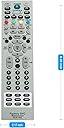
The MKJ39170828 Replacement Remote Control by ZdalaMit offers a hassle-free, ergonomic solution for LG LCD and LED TVs. Powered by 2 AAA alkaline batteries (not included), it features 18 buttons and infrared connectivity with a 33-foot range. Compact and lightweight, it requires no programming—just insert batteries and start controlling. Backed by a 1-year warranty and a 4.7-star rating from over 1,200 users, it’s a reliable, top-ranked remote control designed for seamless TV interaction.

| ASIN | B075M91STG |
| Additional Features | Ergonomic |
| Battery Type | Alkaline |
| Best Sellers Rank | #9,359 in Electronics ( See Top 100 in Electronics ) #462 in Remote Controls (Electronics) |
| Brand | ZdalaMit |
| Button Quantity | 18 |
| Color | gray |
| Compatible Devices | Television |
| Connectivity Technology | Infrared |
| Controller Type | Button Control |
| Customer Reviews | 4.7 out of 5 stars 1,210 Reviews |
| Item Dimensions L x W x H | 8.8"L x 2.1"W x 0.55"H |
| Item Weight | 2 ounces |
| Manufacturer | ZdalaMit Factory |
| Max Number of Supported Devices | 1 |
| Maximum Number of Supported Devices | 1 |
| Maximum Range | 33 feet |
| Mfr Part Number | 43223-1666 |
| Model Name | 8541714652 |
| Model Number | 8541714652 |
| Number of Batteries | 2 AAA batteries required. |
| Number of Items | 1 |
| Number of Packs | 1 |
| Special Feature | Ergonomic |
| UPC | 764560995267 764560990798 |
| Unit Count | 1 Count |
| Warranty Description | 1 year |
R**K
This remote saved me $1000 dollars.
So pawnshop had a giant LG OLED. And they were only asking 350$ for it. The display seemed fine but I was wondering why it was so cheap. It had an error message that scrolled across. Upon googling it I found that it was stuck in diagnostic mode. So I asked the pawn shop employee what the deal was and they said oh you just need a remote but we don't have one. Well... A normal remote wouldn't have gotten the TV out of diagnostic mode. But I didn't tell them that. So I went home and I had a universal LG remote. Went back and said I have a remote. The remote turned it on and off but wouldn't do much else. If I hit volume up or down the TV would turn different colors. So the pawn shop employee was confused and I said yeah I dunno man. I asked Maybe it's something I can have a technician fix? So in order to sell it they took another 100$ off it and I took it home. Ordered the technicians remote from Amazon and followed instructions I found online to get it out of diagnosticode and walaaaa. TV booted up like a charm. So I got a collosal OLED TV for next to nothing all thanks to this little device. I also followed instructions online that said once your done take out the batteries and put the remote away and don't use it unless absolutely necessary because this device can ruin your TV if you don't know what your doing. And I did just that. It stays in my sock drawer until the day it is needed again.
G**N
WORKS PERFECTLY BUT OLDER INSTRUCTIONS DON'T WORK ON NEWER MODELS - I FIGURED IT OUT THOUGH
EDIT: The Instructions below work but there is either another setting that needs to be changed or it's a firmware issue with Newer models. Pretty sure LG knows people are doing this and with newer models the change doesn't last and the procedure with the remote has changed, at least with my Model. There's something else in the firmware that turns all the settings you turned OFF back ON after a period of time. The 1st time i successfully changed the setting it lasted for about 24 hours. Then i tried it 2 more times and the changes stuck for about 6-8 hours and then the horror show of Dark to Bright over and over again started happening. When the settings are turned off the picture looks excellent. I use mine as a monitor, didn't have problems with youtube, or Facebook, its just when the page is left still for a couple of minutes it will dim. Like an Amazon page for example, it would dim by 70%, then i'd scroll the page, and it'd go back to full brightness. I did everything i could to try and make this work. I just want a 48'' - 50'' TV to act as a Monitor and this TV WILL NOT DO IT. DO NOT BUY THE "LG B5 OLED -2025 MODEL" and Possibly any Newer Model LG TO USE AS A MONITOR For 2 Reasons: 1. The Auto Dimming CANNOT BE TURNED OFF PERMANENTLY 2. This LG B5 TV will not go so Sleep/Standby like a Monitor does. All It is capable of is to Turn OFF. Google confirmed that's how this TV is. A Monitor will go Blank, Enter into Sleep/Stand by mode which makes the Monitor appear to be OFF, and have a Dark screen that is OFF but it's just Sleeping. When you move, click the mouse, or touch a button on the keyboard, the Monitor Turns back and you can see your desktop. This is apparently standard for LG TV's bc there's programs out there like "LG COMAPANION" and "COLOR CONTROL" that make the TV behave like a monitor. So Great! another issue. Well, LG Companion works, i read reddit posts on it and saw a Demonstration of it on Youtube. Again, just like making changes with the remote the problem wouldn't stay permanently fixed. With LG Companion i set it up which is easy and then there's a test button you run to make sure the program works. I clicked the button and the TV went to Sleep WITHOUT turning OFF, Score! or so i thought. Well, when it was show time it half way worked. The TV would go into its own version of sleep: It would wouldn't go OFF like it's programmed to do but it would Stay On forever with a Painting Background. Just way too much hassle which is a shame bc i got a great deal on the LG B5 OLED 48'' (2025 Model) for $600. Fed up after a week of trying to make this Tv work, I went today and got a Samsung S90F OLED 48'' for $1,000. They both score HIGH, pretty much the SAME but according to Rtings.Com, which is a thorough and respectable Testing Site has the LG at 8.3 and the Samsung at 8.7 and the Samsung is DEFINITELY Brighter as it's a QD-OLED (Quantum Dot) which are brighter than the LG B5 which is WOLED and best of all, the Samsung works just like a regular Monitor would. I mostly buy TCL's and they all function just like a monitor as well. I mean, even if all the extra things i had to do to get this LG to function correctly (Buy a Technicians Remote and add Software to my computer) it's just too much extra hoops to jump through just to get the monitor to function like just about every other TV on the market but if what i experienced isn't isolated to just my model and is the norm for new LG Monitors then this is a Huge problem. I wouldn't even buy an LG for a TV as i have a pc hooked up to my 85'' TCL Living Room Room TV too. Just too many limitations that LG puts on it's TVs, very odd and i will warn everyone to stay away from LG! __________________________________________________________________________________ Works on LG B5 Series OLED 48'' Model: OLED48B5PUA - This is a 2025 MODEL Purchased March 2026 from Best Buy. BUT there's a catch. The instructions are a bit different for newer models or at least mine anyways. The Main Menu and 2 Settings you're trying to turn off TPC and GSR are the same but getting to them are totally different. Pushing the "IN START" button and putting in code 0413 brings up the totally wrong and worthless menu. I played around with the remote and got lucky For newer models you have to push the "P-ONLY" Button in the very top left. This will bring up a message saying something like if you're not a technician you need to back out of here. It's basically giving you a warning. Ignore it and put it the code its asking for which is the same, 0413. This brings you to a screen with a floating box with a message. Just follow the directions . It says to Press "EXIT & INSTOP" Well there is no "INSTOP" Button but there is an "IN START" Button that the older models use to get into the menu. SO, Press EXIT first then IN START and It'll bring up a big blank screen with a floating box and directions. After you Press EXIT and IN START put in the 0413 Code. Now you're into the Menu you want. Select #12 OLED and Then Turn off TPC and GSR. Then another problem arose. Everytime i'd do that and hit the Green Button 7 times like the Floating Box directions said. The Settings would got back to on after i turned them off. What you do is once you set everything you need to hit the "MENU" Button which will save the settings and back you out of the Menu. THen you hit the Green Button 7 times and you're done. All of your settings for the TV will be erased and you'll have to set your tv up again tho BUT My TV is working perfectly now. I use my TV as a Monitor and going from Super Bright to Dark was not working for me. So, NO MOre DARK, LIGHT, DARK, LIGHT, DARK LIGHT driving me up the wall. I was about to return this thing to Best Buy. __________________________________________________________________________________ DIRECTIONS: 1. Press the "P-ONLY" Button in very top left of remote 2. Enter 0413 Code 3. Select #12 OLED in Menu 4. Turn off "TPC and GSR" 5. Press the "EXIT" Button to save your settings. If you don't press "EXIT" your settings will go back to ON for TPC and GSR 6. Hit the GREEN BUTTON 7 Times OR on the Remote that came with your TV you can Press the "USER GUIDE" button SEVEN TIMES. I've used both and both work 7. You Will Then Have To Set Up Your TV Again like you initially did the 1st time you plugged it up 8. ENJOY! Bc the Nightmare is now over. _________________________________________________________________________________ AMAZON HAS BEEN HAVING A PROBLEM UPLOADING PICTURES THE LAST COUPLE OF DAYS. I"LL TRY & REMEMBER TO COME ________________________________________________________________________ - 1st Pic is of the Worthless Menu that pops up when you use the instructions for older models by pressing IN START and entering Code 0413 - 2nd Pic is the Screen with the floating message box that pops up after pressing P-ONLY and entering code 0413 (It's Basically the same Pic as another person posted with a light or baby blue screen with a square black box with text inside and at the top it says "POWER ONLY") - 3rd Pic is the Exact Same Menu as the older models and the Menu you want. - 4th is a VIDEO Showing How To Turn Off TPC & GSR
P**T
must have!
must have
B**S
Works as advertised.
Works as advertised..don't update.
A**E
Accesses the service menu on LG OLED TV
Worked perfectly to access the service menu on our LG OLED TV. We were having trouble with the automatic dimming protection on static image in the TV. We'd pause a stream from an app and the TV would dim after a time as it was supposed to do. But on some apps the TV would not always brighten up when we resumed watching and the picture would stay very dark. We could always find some way to get the TV to brighten again but it was disruptive. There is a setting in the service menu that disables the automatic dimming function, and this fixed it for all our apps that were having trouble. We use a 100% black screensaver that takes over after 10 minutes of inactivity, so there is no danger for us of burn in by disabling the dimming. Very inexpensive and easy workaround that increased our enjoyment of this TV immensely.
E**S
Auto Brightness and Service Menu review
OVERALL: I got this to help me adjust my Service Menu settings...... PLEASE UNDERSTAND.... this may or may not void your warranty. I fully understood this risk when buying this remote and I understand that.... That said the sets I took to fix my own Auto Brightness and Dimming settings are as follows : """-Press the In Start and enter 0413 -Go to OLED menu -Select TPC and turn it off -Select GSR and turn it off -Press exit""" The Auto Brightness settings I've adjusted WORKED SOMEWHAT for me so far. I STILL NOTICE my screen lighting will adjust if I zoom into a photo and move along the image however if I leave the image alone the screen will not dim or the brightness doesn't seem to darken. The overall images I get seem to be fine and so far I haven't seen a dimming effect. REMOTE USAGE: The remote is complex and to some that may be ok, but to me I'll keep using the standard remote I have with the C1 I own it's a simple menu layout and I don't intend to learn or get used to the Service Remote. I simply bought it to adjust the settings I couldn't access without it. I don't think it's a totally bad layout I just don't want to learn how to use it when I have a more simple remote that I can use with my C1.
A**I
Works!
Do you find your OLED dimming during podcasts or movies/shows and find it annoying? Are you pressing the menu button to brighten the screen just for it to go back dim after about 10 mins? Did you dig through that menu looking for settings to keep the screen bright but found none? You, my friend, have found the remote that lets you access some hidden features to resolve that annoying issue! Buy this remote, throw some pink bunny batteries in and enjoy all your media without the screen dimming! Other reviews list the procedure. Check them out!
R**M
Disabling TPC (Auto Dimming) on LG OLED CX55 is Amazing! - Get This Remote!!!
After TPC (Temporal Peak Luminance Control or "Auto Dimming" for short) on LG OLED CX55 (2020) ruined the last three scenes of Dune by making it so progressively dark I could barely see anything, I was unwilling to tolerate the auto-dimming anymore. Most other movies I own have suffered from the auto-dimming but I thought I could tough it out... until that last climactic Dune fight scene was wrapped in an artificial night. I got this remote and did what has been suggested here and elsewhere: 1) press "IN START" button --> put in 0413 --> toggle down to "12-OLED" (at least for my CX55 TV) --> toggle right to "TPC Enable" (default is "ON") --> toggle right to change to "OFF" (or to "ON" if already "OFF") --> press EXIT --> turn off TV and turn on again to make the change take effect. Voila! Nothing could be simpler! Now, for the caveat: after all that's been said, I will enable TPC when my TV is being used for other inputs.... but never again for movies from my 4k UHD player. ***** WARNING: DO NOT EVER PRESS THE "IN STOP" BUTTON!!! THAT BUTTON MAY SEEM THE LOGICAL BUTTON TO PRESS WHEN YOU ARE DONE MAKING CHANGES, BUT IT WILL DELETE ALL YOUR SETTINGS AND RETURN IT TO "OUT-OF-THE-BOX" STATUS!!! MY CHEEKS BEAR THE STREAKS OF TEARS HOPEFULLY YOUR EYES WILL NEVER HAVE TO CRY :( *****
M**D
A must have
A must have if you own an LG tv. To disable the annoying auto dimming
J**N
Great but care needed.
Allows you to adjust and change so much that regular settings doesn’t. Just be aware this isn’t a toy, you can kill your TV with this remote.
才**弥
レスポンスいまいち
LGのTVで使用。出力が弱いのか、反応が悪い。
C**B
Exactly What I Needed to Unlock a Locked LG Hospital TV
Bought this to troubleshoot an LG 42LY560M-UA hospital TV that had no sound. The normal Settings menu was disabled, and even the TV's hardware joystick/menu button was locked out, so there was no way to access the TV's settings with the original hospital remote. This service remote worked perfectly. I was able to access both the IN-START and EZ-ADJUST service menus using the default password. While troubleshooting, I eventually gained access to the regular settings menu and discovered the TV's audio output had been set to "External Speaker (Optical)" instead of "TV Speaker." Once I changed that setting, the sound immediately came on. Without this remote, I would have had no way to diagnose the problem because all of the normal menus were disabled. If you need to troubleshoot or service an LG commercial, hospitality, or hospital TV, this remote is an excellent tool and worked exactly as advertised.
C**S
Cheap and it works!
I have several LG TVs so, since this was so reasonably priced I figured that even if I only use it a handful of times that it is still worth getting. The remote actually feels quite sturdy and arrived undamaged and as shown in the pictures. It has all of the functions for many different models of LG TVs that you could ever need, including access to service mode, and various direct access buttons that are very useful when setting up macros with voice activated IR controllers (i.e. "Alexa, turn on HDMI2", which is a macro to power on the TV and set it to HDMI2) Probably one of the most useful inexpensive items I've purchased in a while.
Trustpilot
3 weeks ago
1 week ago