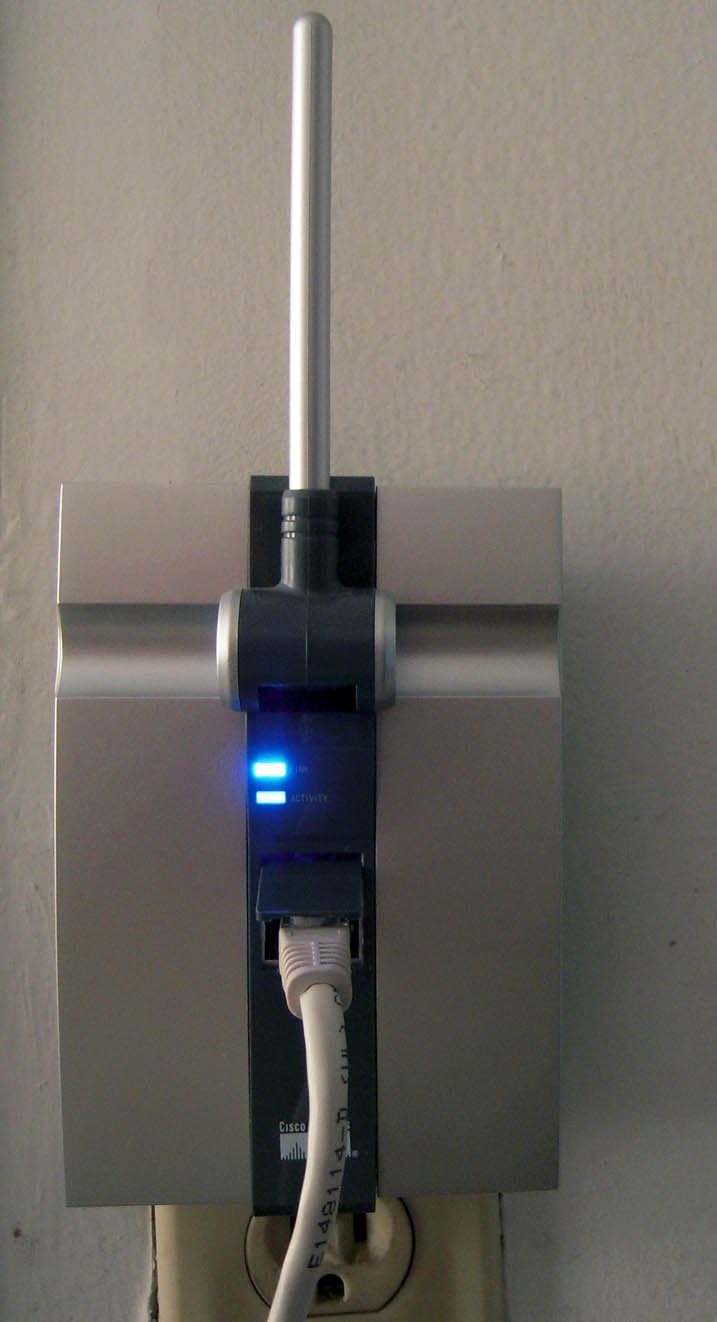


Cisco-Linksys Wireless-G Range Expander WRE54G
Product ID: 6913393
📏Compact 3.18x8.27x1.77 in size
📶802.11b/g wireless standard
🔒64/128-bit WEP security
Desertcart purchases this item on your behalf and handles shipping, customs, and support to Seychelles.
📡 Expand your Wi-Fi kingdom—no wires, no limits!
The Cisco-Linksys Wireless-G Range Expander WRE54G boosts your existing 802.11b/g wireless network by repeating signals to hard-to-reach areas. Its compact design and plug-and-play setup eliminate the need for extra cabling, making it ideal for extending coverage in homes, offices, and public venues. While it supports 64/128-bit WEP security, it does not support WPA2 encryption, so it's best suited for legacy networks or environments where advanced encryption is not mandatory.
| ASIN | B00021XIJW |
| Best Sellers Rank | #810,958 in Electronics ( See Top 100 in Electronics ) #4,606 in Computer Routers |
| Customer Reviews | 3.3 3.3 out of 5 stars (625) |
| Date First Available | December 19, 2005 |
| Is Discontinued By Manufacturer | No |
| Item Weight | 1.2 pounds |
| Item model number | WRE54G |
| Manufacturer | Linksys |
| Product Dimensions | 3.18 x 8.27 x 1.77 inches |
W**.
Expander Works Well with WRT160N Wireless Router
Even though that Linksys has not tested this expander with their new WRT160N Wireless "G" and "N" router I found that is is possible to work to extend the signal 50 feet or more. Previously I was getting only one bar of signal at 45 feet but now I have 5 bars. I gave the item 5 stars for Performance of the unit and 5 Stars for Amazon's customer service who replaced the first and according to Linksys Tech support, defective unit, and they shipped it 2nd day air. I give Linksys Tech support 4 stars for getting me up and running. I subtracted one star because the first tech did not recognize the first unit was defective as it has two blue lights (about which more below) but did not increase the signal level. I give the documentation and CD-ROM that came with the Linksys expander 0 (ZERO) stars as it is worthless. Even though I am an engineer and familiar with networking I had to call Tech Support to get running as the CD-ROM could not even find my router that I knew was working correctly as I had just received 29 emails by wireless. My setup procedure was as follows: To set this up with the WRT610N Cisco (Linksys) wireless router in Microsoft's Windows you'll need two Ethernet cords and the patience of Job. On the wireless router plug one Ethernet cord into jack #2 which will go to your desktop or main computer (my base computer is a laptop set up like a desktop with external keyboard and mouse and additional hard drives for storage and backup) and the other Ethernet cord into any one of the other jacks which will go to the Extender. I recommend that you setup your distant computer (if this is a separate unit----my two are) and have it in contact with your router, albeit at one bar of signal. This latter point will allow you to tell if the extender is actually working. You can't assume that two blue lights are an indication the unit IS working---only an improvement of the signal level will do that. First, setup the extender close by your router and main computer and plug it in to power (not yet into the router with the Ethernet cord). Plug the router from jack 2 into the main computer Ethernet jack. In your web browser (I use Firefox and since I have Windows I also have Internet Explorer----I used both in the setup but you can use the same one but I recommend two separate windows so you can see the settings of both the router and the extender at the same time) in the space for the address type 192.168.1.1 (the address of the router). A window will appear. You want to go to the Wireless tab and under that to the Wireless Security tab. From the drop down menu for security (it probably reads WEP when first reaching this window)select "Disable." Do this Also, on drop down menus for both frequencies. Select "G" Only (as far as I know this extender will not work on the higher "N" frequency). Click "Save Settings" at the bottom of the screen. A separate window with a confirmation appears----click "Continue." Next, plug the extender into the router with the second Ethernet cord with the power on. At this point the one light on the extender will be blue and the other red. In a second browser window type in the address space 192.168.1.240 (the address of the extender). You'll get another window. The important part is that the SSID in both the router and extender have the same name---say, Home Wireless. Check to see that the security on the expander is disabled. Click "Save Settings" and a window will appear "Rebooting." Both lights on the extender should now go blue. If they do go to the next step. Unplug and take the extender midway between the router and the remote computer and plug it into power. Hopefully, both lights come on blue. If they do check the remote computer to see if the signal has improved. If it has you're almost done. Take the extender back to the main computer area and plug it in to the power and the Ethernet cord to the router. Go to the browser and access the extender again (192.168.1.240). On the screen for security WEP and 64 bit from the drop down menus. In Key 1 type in a 10 digit number you'll remember---your phone number is good (without the hyphens------1234567890). Save Settings. A window appears and says Rebooting and the lights turn to red and blue---you've lost the connection until you set the router to the same settings. Go to the second Browser window and access the router (192.168.1.1) and set the security to WEP, 64 bit, key 1: 1234567890. Make sure that the TX key (1 is recommended to get the best range)is the same for both the router "Save Settings" at which point the extender 2 lights should both go blue. If they do move the extender to the position to extend your range and plug it in to power. At this point you can also unplug the router from the Ethernet port of the main computer. If both lights are blue on the extender in the desired location check to see you have improved signal on your remote computer. If you do you're done. If you don't, call Tech Support! I downloaded and printed 36 pages of reviews from this website which were helpful but because the first unit was defective even with 2 blue lights and the 2nd CD-ROM could not find my router, I called Tech support. You'll need the model number and serial number of both the router and expander if you call. Allow about 1 hour for the call and be ready to get accustomed to an unfamiliar accent. I suggest a portable telephone so you can be in constant communication with Tech Support when moving the expander and checking the signal on your remote computer
B**Y
Must upgrade firmware
Thanks to some hints from other reviews, I was eventually able to get this up and running, but there are a few key steps I would add to the previous reviews. 1. Go to the Linksys Web site and download the updated firmware or you might as well box it up and send it back now. 2. If you have WEP enabled (and you should) on your existing network, turn it off temporarily. 3. Plug in the range extender and hit autoconfig. 4. Connect to the range extender at [...] 5. Change the password and save it 6. Update the firmware (mysteriously, this is on the Help page). 7. Reconnect to the range extender 8. Turn on WEP on the range extender (the link light will turn red because it is trying to connect to the router with WEP) 9. Turn on WEP on the existing router (the link light will turn blue, as both units now have WEP on). If, at any point, the link light stays red for more than 10 seconds, try resetting the unit with a paperclip (above the autoconfig button) for 15 seconds and start over. So, why not 5 stars? --My network range is better, but not what I would have hoped--really only bought me one more room in my house. Luckily, that's all I really needed, but I was hoping for a little more for outside and a guest room. --The Setup CD is worthless --There is no useful documentation provided with the unit nor on the Web site --The out-of-date firmware with which the unit is supplied makes it unusable (I could not get a link from two inches away until I updated the firmware). --There is nothing on the web interface to tell you if you are connected to your network. You can connect to your network and the range extender even if they are not talking to each other!
O**S
Newest WRE54G Expander plugs into router for setup!
I purchased the latest model WRE54G expander in July 2008. The BIG difference in the newer model is that you can plug it into your router for setup - eliminating most of the headaches mentioned in the older reviews. I think that most of these reviews were of a unit that could not plug into a router and had to be setup via the "automatic" setup. The automatic setup is still not so nice if you have security turned on but there are ways to resolve that problem too. Being able to connect to your existing router by cable makes setup a snap! Also, the instructions appear to be rewritten by a human being because they are reasonably easy to understand. On my first setup, I basically walked my way through the setup wizard in about 5 minutes with the expander plugged into an outlet near my router and then plugged into my router with the included Ethernet cable. I unplugged the WRE54G, walked across the house and up a few flights of stairs to the far reaches of my wireless signal and plugged the expander into the wall. My laptop normally gets 0-1 bar of signal in this room. Tada! 5 bars with the WRE54G in place with security in place. I looked at the expander configuration via [...] - default expander IP - and it (of course) had all the right security information in place. Since I am a big proponent of wasting my time, I decided to reset the unit (with a pen in the small hole) and see how the automatic setup worked. I took a cue from Mr. Anthony Taylor's review and turned wireless security off on my existing router. I plugged in the WRE54G to a power outlet close to the router and pushed the auto configuration button for 5+ seconds and then watched the red light go to blue after about 30 seconds. I unplugged the expander and took it back to the other side of the house again - same result - full signal on my laptop. That was all great except that my wireless security was still turned off. I pretty much followed Mr. Taylor's instructions for turning security on: I opened a browser window and went to [...] and had the expander configuration screen. I entered the default password (admin) and went to "edit security settings" and entered my WPA key and saved that. I opened another browser window, opened my router config and turned wireless security back on (and reset my wireless connection from the laptop with security on). I unplugged the WRE54G and plugged it back (you must do this for it to re-initialize) and less than 1 minute later I was secure with 5 bars. Overall, this piece of hardware does an excellent job of expanding the signal in my large rambling house that is hard to cover with wireless. I would order more of these to hopefully cover my entire place but it appears to have a fixed (default) IP so more than one of them would cause an IP conflict. I need to check this issue out... Linksys has obviously made some significant improvements in the setup but I would not have purchased this unit except for some of the excellent reviews, particularly Mr. Anthony Taylor's review. I would like to think that the many negative comments by users prompted Linksys to look at how this piece of equipment was made and that our opinions resulted in improvements. Yay us! Also - don't forget your firmware upgrade. This unit I bought in July 2008 shipped with ver 3.01.1 dated something like 2004. The latest firmware is 3.04.1 dated June 2006. You would think that Linksys could put the latest firmware in seeing that it is 2 years old. Unless my router has been on a shelf since before that! Could that be possible? Regardless, this is a product I recommend to anyone needing to boost their wireless signal around the house or office.
J**S
WiFi in the house is performing brilliantly now. Ordering this product was easy. Value for money spent was excellent. Delivery was swift. Excellent experience overall.
N**U
Great
Trustpilot
2 weeks ago
1 month ago